

Device Connection & Configuration Instructions
A complete guide to connecting and configuring equipment for ePowerControl and ePowerLog products.
Search by brand for meters, genset controllers, smart loggers, sensors, I/O modules, inverters, and PCS.
Table of Contents
ABB
ABB TRIO-20.0/27.6
Installation steps
- Configuration
- Wiring to Elum Explorer
Configuration
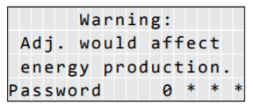
- Enter your password (default password is 0000) and press enter
- Go to Address and set the address (Modbus ID) of the hardware
- Go back to the settings menu
- Go to the PMU RS485 menu
- Set the protocol to “Modbus RTU”
- Set the Baud Rate according to your Communication Architecture Plan
Connect the ABB TRIO-20.0/27.6 to Elum Explorer
Connect the RS485 port of the inverter to the Serial Port 1 or 2 of the Elum Explorer.
ABB TRIO-50.0/60.0
Overview
The TRIO-TM-50.0/60.0 is a series of three-phase string inverters for large decentralized photovoltaic systems for both commercial and utility applications. The TRIO-50.0/60.0 inverters communicate with Elum Explorer over Modbus communication protocol via an RS485 physical interface.
RS485 interface description
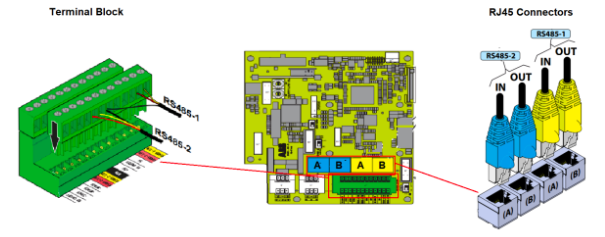
Cables connecting the RS485 line may use two different types of connection:
- Connection of the conductors using the terminal connectors (+T/R, -T/R, RTN e SH)
- Connection of conductors with RJ45 connectors
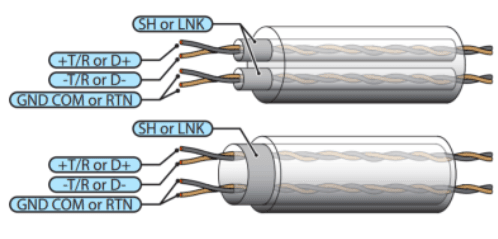
The SH connection must be used for connecting the shielding boot(s) of the cable(s).
The two RJ45 connectors (A) and (B) available for the RS485 communication, are equivalent to each other and can be used interchangeably for the arrival or for the output of the line in realizing the daisy chain connection of the inverters.
Both RS485 lines can be used to:
- Connect the inverter to monitoring devices
- Carry out configuration operations using the “Aurora Manager LITE” configuration software
- Send power management commands
The two lines only differ in terms of the firmware upgrade (locally or remotely through the ABB monitoring devices) which must be carried out by connecting to the RS485 (1) port.
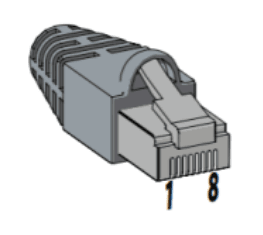
For RJ45 connectors, the crimping diagram is the following:
| Pin N° | Function |
| 3 | +T/R or D+ |
| 5 | +T/R or D+ |
| 7 | RTN or GND COM |
| 1, 2, 4, 6, 8 | not used |
Installation steps
- Downloading the software “Aurora Manager LITE”
- Connecting the inverter to computer
- Connecting the Inverter to Aurora Manager LITE
- Getting INSTALLER level access
- Changing the protocol to Modbus
- Wiring inverters to the Elum Explorer
Downloading the software “Aurora Manager LITE”
The inverter has two RS485 communication lines with the communication protocol which can be set in “Aurora” (proprietary communication protocol) or ModBus (public communication protocol). The default configuration of the protocol for both communication ports is “Aurora” which can be changed through the advanced “Aurora Manager LITE” configuration software.
Any configuration of the inverter must be carried out through Aurora Manager LITE software. The software and its manual are available at ABB Library https://library.abb.com/fr
Wiring the inverter to computer
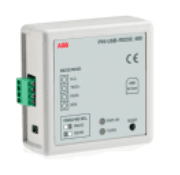
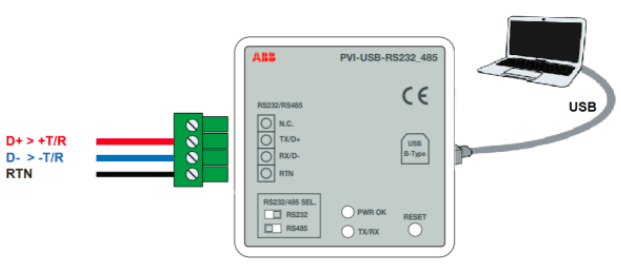
In order to use the software, a connection must be established between the PC and the inverter (by means of an RS485 communication line) using a PVI-USB-RS485_232 signal converter. In all cases, the use of ABB products is recommended to avoid problems of incompatibility with the inverter.
The connection of the RS485 serial line to the converter PVI-USB-RS232_485 is made on the terminal board with 4 poles:
- Terminal D- must be connected to the terminal -T/R or D- coming from the inverter
- Terminal D+ must be connected to terminal +T/R or D+ coming from the inverter
Your computer may not recognize your PVI-USB-RS232_RS485 converter, in this case, it is necessary to install a USB driver in your computer. The driver can be found on the provider’s website.
Connecting the Inverter to Aurora Manager LITE
To Check the COM port associated with the signal converter, the steps are as follows:
- From START, go to the “Control panel”
- Select “Device management”
- Select “Ports (COM and LPT)”
- Check “Communication port (COM)”
Next to the port selected is the name of the COM indicated (in the example COM4) that must be selected in the Aurora Manager Software communication settings.
- On your laptop, open the Aurora Manager LITE software
- Apply the communication configuration settings
- Scan for connected devices (using the refresh button)
Getting INSTALLER level access
The INSTALLER level offers the option of applying advanced settings for the inverter. Access to this section of the software is password protected as it permits the modification of sensitive parameters such as those relating to the standard for connection to the grid in force in the country of installation.
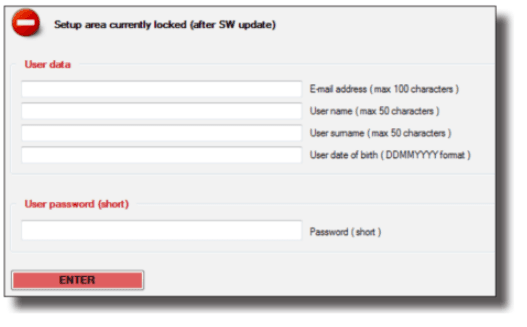
The advanced configuration of the inverter is available by logging in on the menu “Configuration > Setup Area access”.
To obtain the password, register at https://registration.abbsolarinverters.com/ where, on entering your personal data, you will receive an email with the login details. Once the personal data has been entered, press ENTER.
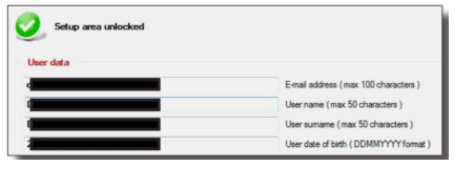
Aurora Manager LITE will now allow you to carry out the advanced configuration of the inverter.
Changing the protocol to Modbus
Once the Setup area is unlocked, navigate to the “Serial Links” tab.
Set the communication protocol to Modbus and the baud rate to 9600.
Wiring to Elum Explorer
Connect the wires as shown in the following table:
| Elum Explorer Serial Port Terminal Block | Inverter RS485 |
| Pin | Pin |
| 3 | +T/R or D+ |
| 4 | -T/R or D- |
| 5 | RTN or GND COM |
The cable which must be used to create the serial communication line RS485 must have the following characteristics:
| Section | Max. Length | Characteristic impedance | Specific capacity |
| Min. AWG24 / 0.25mm2 | 1000 m | 120Ω | Included between 50 and 100pF/mt |
ABB PVS-100/120-TL
Overview
ABB PVS is a series of three-phase string inverters. PVS100 and PVS120 inverters can communicate with Elum Explorer using SUNSPEC Modbus communication protocol via their RS485 interface.
Modbus/RTU SUNSPEC-compliant Modbus protocol is only supported by the RS485 interface.
Installation steps
- Wiring to Elum explorer
- Accessing to the Web User Interface
- Setting the RS485 parameters
Wiring to Elum Explorer

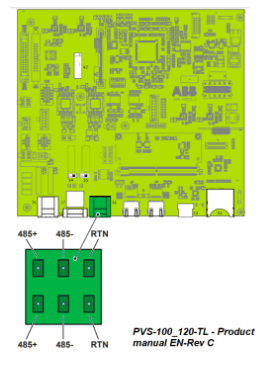
Connection of the R485 communication line conductors is made using the terminal block connectors (485+, 485- and RTN).
The RS485 port can be used in two modes:
- Slave mode: enables daisy chain connection of the inverters over the serial line
- Master mode: can be used for connecting supported accessories (like weather station, meter…):
In order to communicate with Elum Explorer, the RS485 should be set to Slave mode. By default the RS485 port is set as Slave mode. In case the port was set as “Master mode” it must be configured to use the RS485 as a serial communication line (refer to the last section).
Connect the wires as shown in the following table:
| Elum Explorer Serial Port Terminal Block | Inverter RS485 Terminal Block |
| Pin | Pin |
| 3 | RS485+ |
| 4 | RS485- |
| 5 | RTN |
ℹ️ If the inverter is at the end of the daisy chain, the termination switch S5 can be used as a 120 ohms termination resistor.
For long-distance connections, the connection on the terminal connector is preferable using a shielded twisted pair cable with a characteristic impedance of Z0=120 Ohm like the one shown on the following figure:
Accessing the web user interface
The inverter is equipped with an advanced integrated Web User Interface and user interface that allows full access to all configuration and commissioning parameters from any electronic device equipped with wireless connection (laptop, tablet, and smartphone). To Access the web user interface, the procedure is the following:
- Enable the wireless connection on the device which is being used for the board setup (tablet, smartphone or PC) and connect it to the Access Point created by the inverter system: ABB-XX-XX-XX-XX-XX-XX
- When required digit the PRODUCT KEY (printed on the “Communication Identification label” and applied during the commissioning phase to the plant documentation) as an access point password.
- Open an internet browser (recommended browser: Chrome versions from v.55, Firefox versions from v.50) and enter the pre-set IP address 192.168.117.1 to access the login page.
- Set the Administrator account user and password and use them to log in
Setting the RS485 parameters
The Web User Interface is divided into six main sections, available on the left sidebar, Navigate to the network section.
In the RS485 sub-menu set the communication settings as follows:
- RS485 Node Address: should be unique in the modbus serial network (can be set from 1 to 247)
- RS485 Baud Rate: 9600 baud
- RS485 Parity Mode: No Parity
- RS485 Protocol Type: Modbus Sunspec Server ( slave mode).
ABB A43/A44
Overview
The A4x is a series of power metering solutions intended for commercial and industrial applications. The A43 and A44 meters can communicate with Elum Explorer using modbus RTU communication protocol via their RS485 interface.
The RS485 interface is optional in ABB A4x meters, make sure that the right product is ordered. An ABB A4x equipped with an RS485 interface should have the number “2” written in the sixth digit of its order code “A4x xx2-xxx”.
Installation steps
● Wiring to Elum explorer
● Setting RS485 parameters
Wiring to Elum Explorer
The RS485 location and description is shown in the following figure:
| PIN | Pin signal |
| 37 | A |
| 36 | B |
| 35 | C |

Connect the meter to Elum Explorer as shown in the following table:
| Elum Explorer Serial Port Terminal Block | A4x MeterTerminal block |
| Pin | Pin |
| 3 | B |
| 4 | A |
| 5 | C |
ℹ️ The cable used is a unshielded or shielded twisted pair cable with wire area of 0.35-1.5 mm2. If a shielded cable is used the shield should be connected to the ground at one end. The maximum length of the bus is 700 m.
Setting RS485 parameters
To set the RS-485 communication using the local display, perform the following steps:

Advantech
ADAM-6015
Overview
ADAM-6000 series data acquisition and control (DA&C) modules provide I/O, data acquisition and networking capabilities. Elum Explorer could communicate with ADAM 6000 modules over Modbus TCP protocol via an Ethernet interface.
The ADAM-6015 is a 16-bit, 7-ch RTD (Resistance Temperature Detectors) input module with programmable input ranges on all channels. It accepts various RTD inputs (PT100, PT1000, Balco 500, and Ni), and data are transmitted to the host computer in engineering units (°C).
Installation steps
- Setting modbus parameters through Adam/Apax .NET Utility
- Configuring the input channels
- Sharing the Modbus Addressing
- Wiring to Elum Explorer
Setting modbus parameters
Adam/Apax .NET Utility is an application provided by Advantech for the configuration and operation of ADAM modules. It allows the user to configure communication parameters in order to make them compatible with Elum explorer.
Before installing Adam/Apax .NET Utility, you will need to install .NET Framework 2.0v or later.
ℹ️ Adam/Apax .NET Utility can be found on the CD provided with your ADAM module, and it is also available for download at http://www.advantech.com (click on Download Area under Service & Support for the latest version).
The procedure for accessing modbus communication parameters is the following:
- Connect the module to your computer
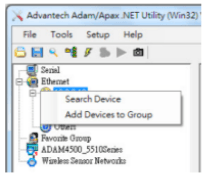
Select the Ethernet category on the Module Tree Display Area and click the Search Modules icon on the Toolbar.
ℹ️ If you have any connection issues, try disabling the network firewall for Adam/Apax.NET Utility on your computer.
3. Select your device on the Tree Display under Ethernet
Adam/Apax .NET Utility will then search for all ADAM-6000 modules on the Ethernet network. If this is the first time you have connected the module, its IP will be 10.0.0.1 by default and it will appear under Others in the Module Tree Display Area.
You need to change the IP address of the ADAM-6000 module so that it is the same subnet as the Explorer. Enter the correct IP address, subnet address, and default gateway on the Status Display Area and then click Apply Change. A dialog box will appear asking you to enter the password.
ℹ️ The default password of ADAM-6000 modules is “00000000” (without quotation marks). Note that you can change the password later.
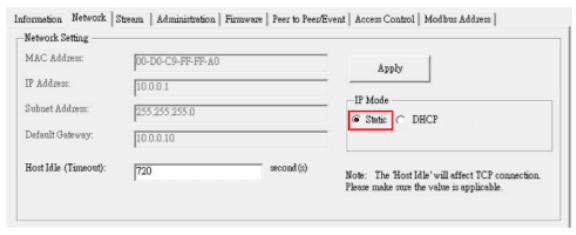
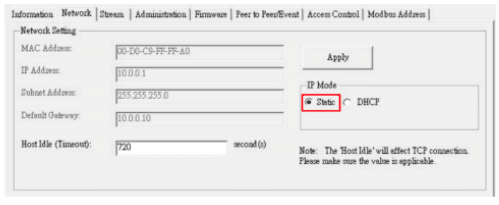
4. Go to the Network tab
5. Change the IP mode from DHCP to Static
6. Set the Network Settings according to your architecture Plan
ℹ️ Each device should have a unique IP address.
Each device must be in the same sub-network as the Elum Explorer.
The sub-network cannot be 192.168.4.XX, which is reserved for configuration over LAN port n°2 of the Explorer.
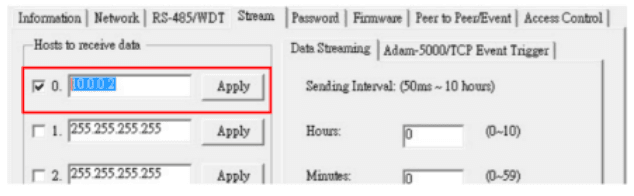
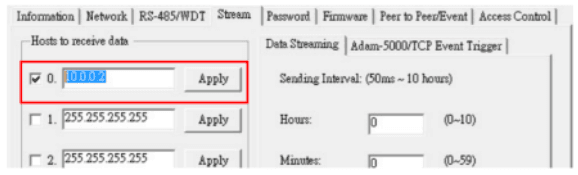
7. ADAM-6000 modules can be configured to periodically transmit data to up to eight hosts. Assign Elum Explorer as a host by checking one of the available hosts and entering the explorer’s IP Address in the Stream Tab.
Configuring the input channels
After completing the general and network configuration of the ADAM-6015 module, the next step is to configure the Input channels. By clicking on the IP address of the ADAM-6015 module, you will see two items below the IP address and once the correct password is entered, a list of individual channels (for individual channel configuration) will appear below the module number.
When clicking on the module number, the analog input value and configuration settings for all channels will be shown in the Status Display Area as follows.
This panel contains five tabs for viewing and configuring the analog input value of all channels: the Channel setting tab, the Average setting tab, the Modbus (Present) tab, the Modbus (Max) tab, and the Modbus (Min) tab.
For further information about the configurations to apply in the Status Display Area, please refer to ADAM-6000 Series User Manual.
Sharing the Modbus Addressing
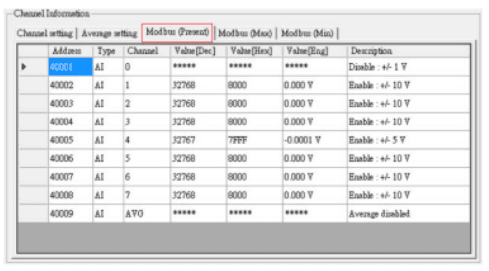
The Modbus (Present) Tab under the channel information shows the current analog input values decimal, hex, and engineering units for all related Modbus addresses. This Table should be shared with Elum Energy Engineers in order to develop the communication drivers.
Wiring to Elum Explorer
Connect the RJ45 port of the module to the LAN port n°1 of Elum Explorer directly, via a router or using a switch.
ℹ️ LAN port n°2 of the Explorer cannot be used for monitoring and control purposes, it can only be used to connect your computer and access Elum Configuration.
The total Ethernet cable should not exceed 300 m.
ADAM-6060
Overview
ADAM-6000 series data acquisition and control (DA&C) modules provide I/O, data acquisition and networking capabilities. Elum Explorer could communicate with ADAM 6000 modules over Modbus TCP protocol via an Ethernet interface.
The ADAM-6060 is a high-density digital I/O module with a 10/100BASE-T interface. Bonding with an Ethernet port and web page, the module provides 6 digital inputs and 6 relay outputs.
Installation steps
- Setting modbus parameters through Adam/Apax .NET Utility
- Configuring Pulse output
- Wiring to Elum Explorer
Setting modbus parameters
Adam/Apax .NET Utility is an application provided by Advantech for the configuration and operation of ADAM modules. It allows the user to configure communication parameters in order to make them compatible with Elum explorer.
Before installing Adam/Apax .NET Utility, you will need to install .NET Framework 2.0v or later.
ℹ️ Adam/Apax .NET Utility can be found on the CD provided with your ADAM module, and it is also available for download at http://www.advantech.com (click on Download Area under Service & Support for the latest version).
The procedure for accessing modbus communication parameters is the following:
- Connect the module to your computer
- Select the Ethernet category on the Module Tree Display Area and click the Search Modules icon
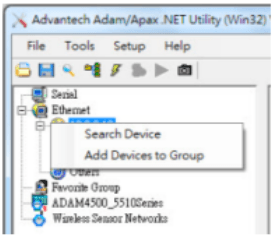
on the Toolbar.
ℹ️ If you have any connection issues, try disabling the network firewall for Adam/Apax.NET Utility on your computer and verify your Ethernet port settings.
3. Select your device on the Tree Display under Ethernet
Adam/Apax .NET Utility will then search for all ADAM-6000 modules on the Ethernet network. If this is the first time you have connected the module, its IP will be 10.0.0.1 by default and it will appear under Others in the Module Tree Display Area.
You need to change the IP address of the ADAM-6000 module so that it is the same subnet as the Explorer. Enter the correct IP address, subnet address, and default gateway on the Status Display Area and then click Apply Change. A dialog box will appear asking you to enter the password.
ℹ️ The default password of ADAM-6060 modules is “00000000” (without quotation marks). Note that you can change the password later.
4. go to the Network tab
5. Change the IP mode from DHCP to Static
6. Set the Network Settings according to your architecture Plan
ℹ️ Each device should have a unique IP address.
Each device must be in the same sub-network as the Elum Explorer.
The sub-network cannot be 192.168.4.XX, which is reserved for configuration over LAN port n°2 of the Explorer.
7. ADAM-6000 modules can be configured to periodically transmit data to up to eight hosts. Assign Elum Explorer as a host by checking one of the available hosts and entering the explorer’s IP Address in the Stream Tab.
Configuring the digital Inputs/Outputs
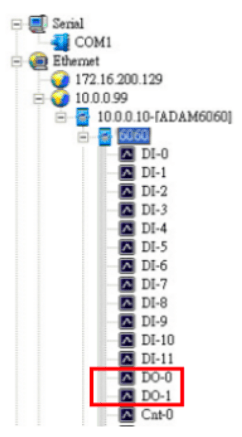
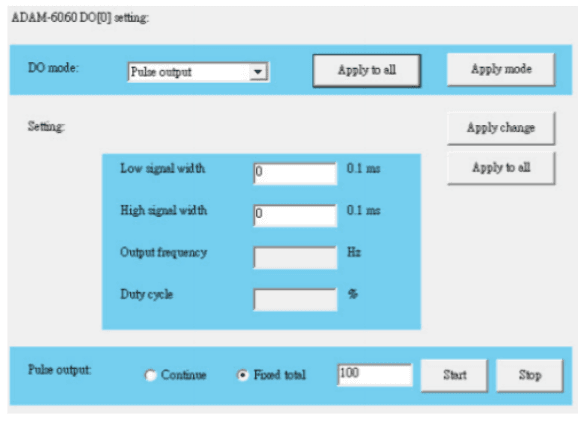
After setting the network configuration, you will need to configure the output and the input channels to be in pulse mode. When you click on the IP address of the ADAM-6060 module, you will see two items below the IP address. When you click on the plus and minus control beside the module number, you will be prompted to enter the password for the selected module.
Once you have entered the correct password, a list of individual channels (for individual channel configuration) will appear below the module number.
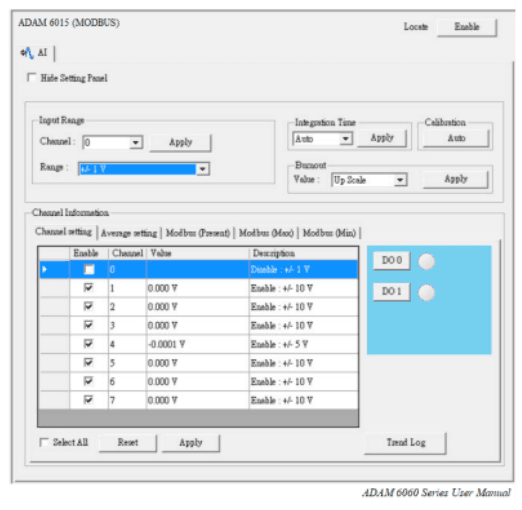
If you choose a digital output channel from the list of individual channel configuration items, the Status Display Area will appear as shown in the figure below:
Wiring to Elum Explorer
Connect the RJ45 port of the communication module to the LAN port n°1 of Elum Explorer directly, via a router or using a switch.
ℹ️ LAN port n°2 of the Explorer cannot be used for monitoring and control purposes, it can only be used to connect your computer and access to Elum Configuration.
The total Ethernet cable should not exceed 300 m.
Carlo Gavazzi
Carlo Gavazzi DWB03CM4810A
Overview
DWB03 is an active power monitoring relay for 3-phase balanced systems. It can be used as a genset reverse power protection relay. Indeed when, following the instructions below, the relay will automatically disconnect the PV or the genset when some reverse power is coming from PV installation to the genset.
Installation steps
- Plan the installation location of the DWB03
- Configure the DWB03
- Configure the DWB03 (1/2) – knobs
- Configure the DWB03 (2/2) – DIP switches
- Wire the CT in reverse position
- Test the DWB03 integration
- Wire the CT in the correct position
Plan the installation location of the DWB03
The DWB03 relay must be installed in following the instructions listed below:
- The CT must be monitoring the genset current. In the correct CT position, the current should be measured as positive when coming from the genset.
- The relay must be connected to the PV switch, so as to disconnect the PV system when there is some reverse power to the gensets. If such a setup is not possible due to the distance between the PV switch and the relay, the relay must be connected to the genset switch, so as to disconnect the genset when there is some reverse power to the gensets.

Configure the DWB03 (1/2) – knobs
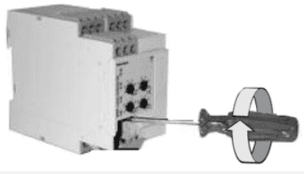
Apply the following settings by using a screwdriver:
- Upper power limit: 100%
- Lower limit: 0%
- Delay on the absolute scale: 0.1 s
- Delay power ON: 1 s
ℹ️ Center knobs:
Setting of upper and lower level from -100 to 100% of nominal power.
Lower left knob:
Setting of delay on the absolute scale: 0.1 to 30 s.
Lower right knob:
Setting of power ON delay on the absolute scale: 1 to 30 s.

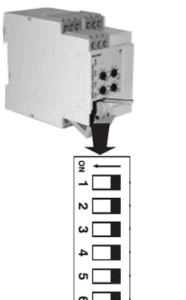
Configure the DWB03 (2/2) – DIP switches
Apply the following settings:
Switch 1: ON
Switch 2: ON
Switch 3: OFF
Switch 4: ON
Switch 5 and 6: According to your installation setup
ℹ️ Switch 1: Input current range (terminals I1, I2 or 10, 11)
ON: 10A
OFF: 5A/MI
Switch 2: Relay status
ON: Relay de-energized in normal condition
OFF: Relay energized in normal condition
Switch 3: Working mode
ON: Contact input for start/stop functions
OFF: Contact input for latch/inhibit functions
Switch 4: Working mode
ON: Contact input for start/stop functions
OFF: Contact input for latch/inhibit functions
Switch 5 and 6: Measuring range

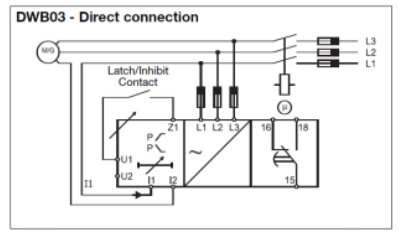
Wire the DWB03
Wire the DWB03 according to the following wiring diagram: 
Point of connection n°15 should be connected to a power source and point of connection n°18 to the PV switch (or genset switch if not possible). So that when the relay detects a reverse power, point of connection n°15 is short-circuited with n°18 giving voltage to the main switch which opens and disconnects PV (or genset if not possible).
Wire the CT in reverse position
Wire the CT in reverse position, so that the current is measured as negative when supplied by the gensets.
Test the DWB03 integration
Turn on the genset, the genset must be automatically disconnected. If not, please review your wiring and configuration. If the test is successful, your DWB03 protection relay has been correctly wired and configured.
Wire the CT in the correct position
Wire the CT in the correct position so that the current is measured as positive when supplied by the gensets.
Carlo Gavazzi WM20
Overview
The WM20 is a modular power analyzer for single-, two- and three-phase systems. The power analyzer communicates with Elum Explorer using the Modbus RTU protocol. In order to establish communication, an optional RS485/RS232 communication module coded M C 485232 isrequired.
Installation steps
- Plugging-in the M C 485232 modbus communication module
- Configuration of the M C 485232
- Wiring to Elum Explorer
Plugging-in the M C 485232 modbus communication module
The M C 485232 is an accessory module for WM analyzer family connected to the main unit that transmits system data remotely using modbus protocol via two interfaces, RS485 and RS232.
ℹ️ Only the RS485 port is used to communicate with Elum Explorer.
The RS485 port specifications are shown in the following table:


ℹ️ For plugging instructions, please refer to the sheet provided with the module.
Configuration of the M C 485232
A configuration of the module is required, it can be performed using the local display. Configuration of the accessory modules and settings of the main unit parameters can be performed before or after installation, but only when the icon is displayed. Parameters for the accessory modules can only be set when the modules are connected to the main unit. The configuration procedure using the local display is the following:
1. The module must be first enabled via the settings menu by navigating to modules —> MC485232.
ℹ️ If the word “Auto” is indicated, that indicates the module is automatically recognized by the system.
2. Back at the settings on the main page, navigate to RS485232 and set the parameters as follows:
- Address: Unique in the RS485 serial network (can be set from 1 to 247)
- BaudRate: 9600 baud
- Parity: None
ℹ️ The module configuration could be also performed using a computer via the UCS configuration software.
Wiring to Elum Explorer
The wiring of M C 485232 to Elum Explorer should be done as shown:
| Elum Explorer Serial Port Terminal Block | M C 485232 Terminal block |
| Pin | Pin |
| 3 | 1 |
| 4 | 2 |
| 5 | 4 |

Carlo Gavazzi WM20
Overview
Carlo Gavazzi’s EM340 is a compact 3-phase metering solution. It can communicate with Elum Explorer over modbus RTU via an RS485 interface.
The RS485 interface is optional in EM340 meters, make sure that the right product is ordered. An EM340 equipped with an RS485 interface should have “S1” written in the order code “EM340 DIN x x S1 x x”.
Installation steps
- Wiring to Elum Explorer
- Setting modbus parameters
Wiring to Elum Explorer
The RS485 location and description are shown in the following figure:
| Pin number | Pin signal |
| 7 | Termination |
| 8 | B+ |
| 9 | A- |
| 10 | GND |

Connect the meter to Elum Explorer as shown in the following table:
| Elum Explorer Serial Port Terminal Block | EM340 Terminal block |
| Pin | Pin |
| 3 | 8 |
| 4 | 9 |
| 5 | 10 |
Additional instruments with RS485 are connected in parallel. The serial output must only be terminated if the meter is the last network device. The termination is done by connecting terminals A- and T as shown in the following figure:

For connections longer than 1000 m use a signal repeater.
Setting modbus parameters
Navigate through the meters pages using the buttons under the front display as shown here:

Set modbus parameters as follows:
- Address: Unique in the RS485 serial network (can be set from 1 to 247)
- BaudRate: 9600 baud
- Parity: None
- STOP bit: 1
Caterpillar
Caterpillar EMCP 4.2 / 4.3 / 4.4 (RS485)
Overview
The EMCP 4 is an advanced series of generator set control panels that monitor and control all aspects of a generator set. They can communicate with Elum Explorer over Modbus TCP, Modbus RTU or both, depending on the product level. In order to know the supported communication protocol on your EMCP 4 controller, please refer to the table below:
| EMCP Level | RS485 | TCP/IP |
| 4.1 | ❌ | ❌ |
| 4.2 | ✅ | ❌ |
| 4.3 | ✅ | ✅ |
| 4.4 | ✅ | ✅ |
Installation steps
- Wiring to Elum Explorer
- Enabling the Control functionality
- Configuring the data link
Wiring to Elum Explorer
The RS-485 data link of EMCP 4 controllers uses optically isolated half-duplex communications. It requires two twisted conductors (Rx/Tx+ and Rx/Tx-) and one reference or common conductor (REF). It is recommended to use a third conductor for the reference, instead of the shield. Therefore the RS-485 SCADA Data Link requires three conductors, plus a shield. The EMCP 4.2 uses different pins than EMCP 4.3 and 4.4. Please refer to the following table:
| Pin Name | Description | EMCP 4.2 Pins | EMCP 4.3 and 4.4 Pins |
| MB- | RS485 differential inverting line (Rx/Tx-) (A) | 3 | 90 |
| MB-REF | RS485 reference signal | 4 | 101 |
| MB+ | RS485 differentials non-inverting line (Rx/Tx+) (B) | 5 | 100 |
ℹ️ Proper implementation of Modbus on EMCP 4 requires 3 conductors, plus a shield. Using a 2-wire unshielded cable is not recommended; however, if needed for low-noise environments and short distances, connect MB+ and MB- only. In cases where noise is present on the shield, improved performance may be achieved by not using the shield as a Reference.
Connect the cable wires as shown in the following table:
| Elum Explorer Serial Port Terminal Block | EMCP RS485 Terminal Block |
| Pin | Pin |
| 3 | 5 |
| 4 | 3 |
| 5 | 4 |
Enabling the Control functionality
In order to enable the Control functionality, SCADA Remote Control must be enabled by following the next steps:
1. At MAIN MENU, scroll DOWN to CONFIGURE
Press the OK KEY
2. Scroll DOWN to ALL SETPOINTS
Press the OK KEY
3. Scroll DOWN to AUTO START/STOP
Configuring the RS485 data link
Before devices will communicate, there are some software configuration steps on the EMCP 4. The configuration parameters are accessible on the EMCP 4 via the following menu options:
1. At MAIN MENU, scroll DOWN to CONFIGURE
Press the OK KEY
2. Scroll DOWN to ALL SETPOINTS
Press the OK KEY
3. Scroll DOWN to NETWORK
Press the OK KEY
4. Scroll DOWN to RS485 SCADA
Press the OK KEY
5. Use the key DOWN to browse the parameters and press the OK KEY to edit the current PARAMETER and press it again to save it.
The parameters to set are the following:
- Modbus address: To be set according to the communication scheme shared by Elum
- Baud rate: 9600
- Parity: None
ℹ️ This configuration could be also performed using the controller’s configuration software CAT ET. For more information, please refer to the device’s manual.
Caterpillar EMCP 4.3 / 4.4 (Ethernet)
Overview
The EMCP 4 is an advanced series of generator set control panels that monitors and controls all aspects of a generator set.
EMCP 4.3 and 4.4 can communicate with Elum Explorer over Modbus TCP and Modbus RTU, this section is dedicated to TCP communication. In case you need to communicate these devices over RTU, please refer to the previous section.
Installation steps
- Wiring to Elum Explorer
- Enabling the Control functionality
- Configuring the data link
Wiring to Elum Explorer
The TCP/IP SCADA Data Link uses an Ethernet network. It requires a minimum of Category-5 (Cat5) cable, but Category-5e or Category-6 are also permitted. It uses four-wire communications. It requires two twisted pairs of conductors (Rx+ and Rx-, Tx+ and Tx-). Connect the EMCP to one of the two LAN ports Elum Explorer according following table:
| Pin Number | Pin Name | Description | Elum Explorer LAN port PIN |
| 87 | ETH1-3 | Ethernet differential non-inverting transmit line (Tx+) | 1 |
| 88 | ETH1-1 | Ethernet differential non-inverting receive line (Rx+) | 3 |
| 97 | ETH1-2 | Ethernet differential inverting receive line (Rx-) | 6 |
| 98 | ETH1-4 | Ethernet differential inverting transmit line (Tx-) | 2 |
The total length of the Ethernet cable must not exceed 300 m.
Enabling the Control functionality
In order to enable the Control functionality, SCADA Remote Control must be enabled by following the next steps:
1. At MAIN MENU, scroll DOWN to CONFIGURE
Press the OK KEY
2. Scroll DOWN to ALL SETPOINTS
Press the OK KEY
3. Scroll DOWN to AUTO START/STOP
Configuring the TCP/IP data link
In order to Enable the Control functionality, SCADA Remote Control must be enabled via the display under MAIN MENU/CONFIGURE/ALL SETPOINTS/AUTO START/STOP. The EMCP 4 TCP/IP setpoints are accessible via the following menu options:
1. At MAIN MENU, scroll DOWN to CONFIGURE
Press the OK KEY
2. Scroll DOWN to ALL SETPOINTS
Press the OK KEY
3. Scroll DOWN to NETWORK
Press the OK KEY
4. Scroll DOWN to TCP/IP SCADA
Press the OK KEY
5. Use the key DOWN to browse the parameters and press the OK KEY to edit the current PARAMETER and press it again to save it.
Set the IP Address, Network Mask and Default Gateway according to the communication scheme shared by Elum.
ℹ️ This configuration could be also performed using the controller’s configuration software Cat ET. For more information, please refer to the device’s manual.
ComAp
InteliLite AMF 20/25
Overview
ComAp InteliLite-NT AMF 20/25 is an AMF controller for single-generating sets operating in standby mode. IL-NT AMF25 features extended support for electronic engines and extension modules. InteliLite AMF 20/25 controllers communicate with Elum Explorer over Modbus RTU via a dedicated communication plug-in module.
Installation steps
- Plugging-in CM-RS232-485 Modbus communication module
- Configuration of CM-RS232-485 Modbus communication module
- CM-RS232-485 Firmware upgrade
- Wiring the inverters to Elum Explorer
Plugging-in CM-RS232-485 Modbus communication module
CM-RS232-485 is an optional plug-in card to enable InteliLite
the RS232 and RS485 communication. This is required for a computer or MODBUS connection. The CM-RS232-485 is a dual port module with RS232 and RS485 interfaces at independent COM channels. The RS232 is connected to COM1 and RS485 to COM2.

ℹ️ To wire the controller with Elum Explorer, please use COM2.
IMPORTANT
Any manipulation with plug-in modules shall be done with a disconnected power supply to the controller.
The RS485 internal wiring is as follows:

Balancing resistors shall be both closed at only one device in the whole RS485 network.
The module is plugged into the slot located on the rear side of the controller, the procedure is the following:
- Remove the back cover. To do this, press four holders which are located in the corners.
- Insert the plug-in module under holders marked by symbol 1. Then insert the plug-in
module undernholders marked by symbol 2. - After locking the plug-in module into holders, place back the back cover.
- Finally insert the small cover for the connectors. Small covers are unique for each plug-in
module.

Configuration of CM-RS232-485 Modbus communication module
A configuration of the module using InteliConfig is required, the procedure is as follows:
- Open the InteliConfig software in your computer
- Click connect controller
- Connect the controller to the computer using the usb port at the back of the device
- Refresh the Detected Controllers
- Select the device and click open
- Navigate to Controller configuration > modules
- Add the corresponding module and click OK and restart
CM-RS232-485 Firmware upgrade
A firmware upgrade might be needed to use the new modbus module, the steps are as follows:
- Download the newest FW of module from ComAp website (in form of PSI file or installation package)
- Install package to the computer or open PSI to install it into LiteEdit Plug the module into the controller and power the controller on.
- Open a connection with the controller via LiteEdit
- Go to the menu Tools -> Firmware upgrade, select the Plug-in modules tab and select the appropriate firmware you want to program into the module (in LiteEdit).
- Press the OK button to start the firmware.
Wiring to Elum Explorer
Connect the wires as shown in the following table:
| Elum Explorer Serial Port Terminal Block | CM-RS232-485 COM2 |
| Pin | Pin |
| 3 | A |
| 4 | B |
| 5 | GND |
ℹ️ For additional information about the wiring to Elum explorer, please refer to the Instruction And Use Manual.
Deepsea
DSE7300 genset controller
Overview
The DSE7310 is an Auto Start Control Module and the DSE7320 is an Auto Mains (Utility) Failure Control Module suitable for a wide variety of single, diesel or gas, gen-set applications.
The communication protocol embedded is Modbus RTU using half duplex 2 wires connection.
Installation steps
- RS485 | Modbus RTU
- Communication wiring
- Modbus setting
Modbus RTU:
Communication wiring:
DSE7300 RS485 pinout:

Pin mapping to Elum Controller
❖ Remove the terminal block connector from the Elum serial port and connect the wires as shown in the following table:
| DSE7300 Terminal Block | Elum Explorer Serial Port Terminal Block |
| Pin | Pin |
| RS485 B | 3 – Data + |
| RS485 A | 4 – Data – |
| SCR | 5 – GND |
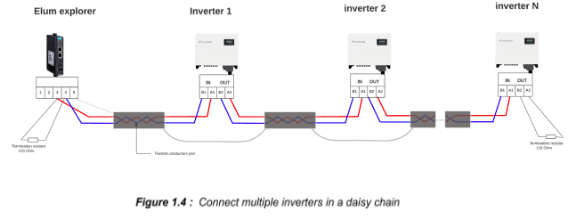
Connect multiple genset controllers in the Daisy Chain:
When connecting multiple genset controllers, the following procedure should be followed:
- Connect the RS485 differential positive and negative signal of the explorer to terminal RS485 B and RS485 A of the first equipment.
- Connect terminal RS485 A and RS485 B of the first inverter in the daisy chain, to terminal RS485 A and RS485 B of other equipment.
- Repeat step 2 for all equipment on the same daisy chain.
- Terminate the daisy chain on both ends using 120 ohms termination resistors.

Genset controller parameters:

To set the Modbus RTU parameters we have either to use the DSE HMI or use the DSE Configuration Suite PC Software.
❖ Access to the DSE Configuration Suite Software
❖ Navigate to the Serial Port Configuration menu
❖ Configure the Slave ID, Baud Rate and Port Usage according to your Communication Architecture Plan.

ℹ️ For the configuration of ePowerControl, please check the ePowerControl user manual page 40.
Deepsea DSE 8610 MKII
Overview
DSE 8610 MKII modules can operate as a Modbus RTU slave device. The factory settings are for the module to communicate at 115200 baud, Modbus slave address 10. DSE 8610 MKII modules can also operate as a Modbus TCP slave device.
If you want to change those parameters according to your Communication Architecture Plan you can do it from the DSE Configuration Suite Software.
Installation steps
- Configure the Deepsea DSE 8610 MKII
- Connect the Deepsea DSE 8610 MKII to Elum Explorer
Configure the Deepsea DSE 8610 MKII
- RS485 | Modbus RTU:
- Access to the DSE Configuration Suite Software
- Navigate to the Serial Port Configuration menu
- Configure the Slave ID, Baud Rate and Port Usage according to your Communication Architecture Plan

ℹ️ ‘Master inactivity timeout’ should be set to at least twice the value of the longest “Response timeout” you set up on any device from Elum Configuration. If “Response timeout” remained by default on Elum Configuration, set it to 10s.
ℹ️ RS485 | Modbus RTU diagnostic screens are included; press the Scroll Down 

- Ethernet | Modbus TCP:
- Access to the DSE Configuration Suite Software
- Whilst in the Communication section, press the Scroll Down
button to access more information about the network settings.
- Configure the IP Address, Subnet mask and TCP port according to your Communication Architecture Plan
- Reboot the DSE 8610 MKII module
Connect the Deepsea DSE 8610 MKII to Elum Explorer
- RS485 | Modbus RTU: Connect the RS485 port of the genset controller to the Serial Port 1 or 2 of the Elum Explorer.
- Ethernet | Modbus TCP: Connect the Ethernet port of the genset controller to the LAN 1 Ethernet port of the Elum Explorer.
DSE74xx MKII genset controller
Overview
The DSE74xx MKII is an Auto Mains (Utility) Failure Control Module suitable for paralleling single gensets (diesel or gas) with the mains (utility) supply. Designed to synchronize a single genset with a single mains (utility) supply, the DSE86xx will automatically control the changeover from mains (utility) to generator supply or run the generator in synchronization with the mains (utility) to provide no-break, peak lopping and peak shaving power solutions.
Installation steps
- RS485 | Modbus RTU
- Communication wiring
- Modbus setting
- Ethernet | Modbus TCP
Modbus RTU:
Communication wiring:
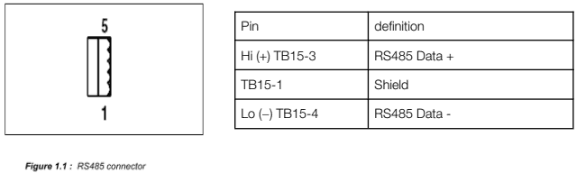
DSE74xx MKII RS485 pinout:

Pin mapping to Elum Controller
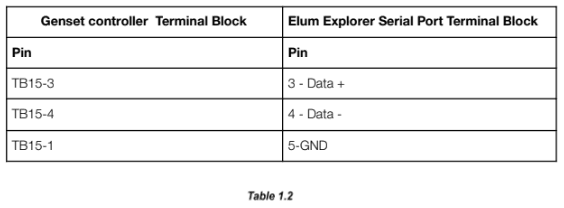
❖ Remove the terminal block connector from the Elum serial port and connect the wires as shown in the following table:
| DSE74xx MKII Terminal Block | Elum Explorer Serial Port Terminal Block |
| Pin | Pin |
| 61 – RS485 B | 3 – Data + |
| 61 – RS485 A | 4 – Data – |
| 59 – SCR | 5 – GND |
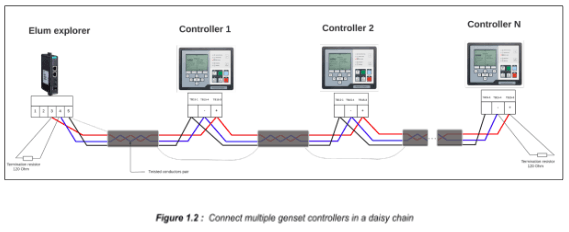
Connect multiple genset controllers in the Daisy Chain:
When connecting multiple genset controllers, the following procedure should be followed:
- Connect the RS485 differential positive and negative signal of the explorer to terminal RS485 B and RS485 A of the first equipment.
- Connect terminal RS485 A and RS485 B of the first inverter in the daisy chain, to terminal RS485 A and RS485 B of other equipment.
- Repeat step 2 for all equipment on the same daisy chain.
- Terminate the daisy chain on both ends using 120 ohms termination resistors.

Genset controller parameters:
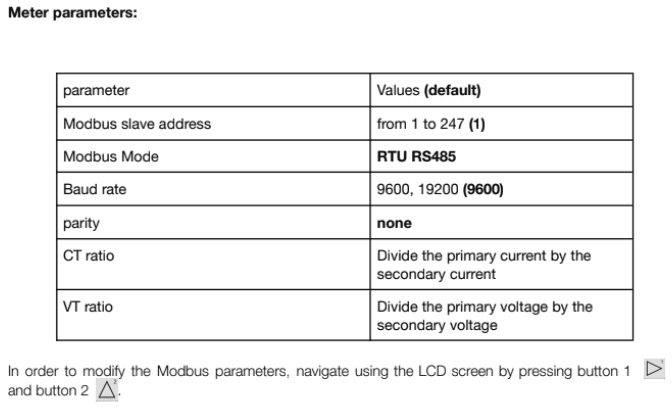
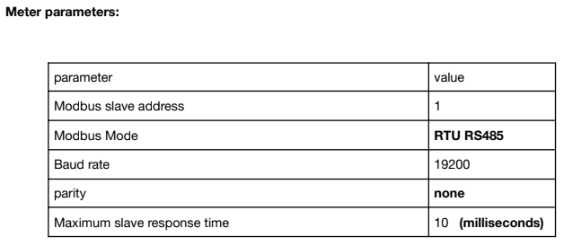
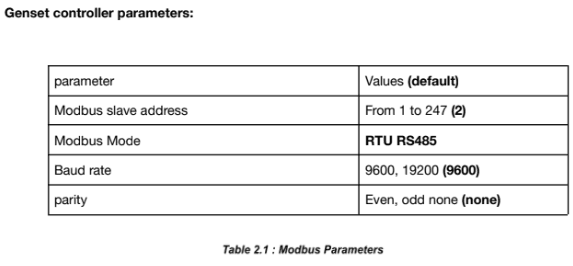
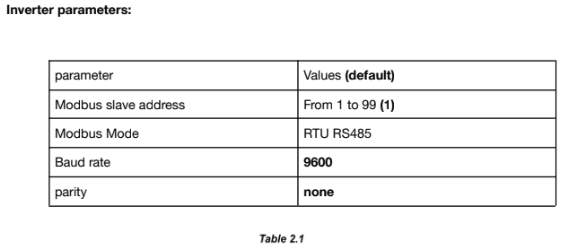
| parameter | Values (default) |
| Modbus slave address | From 10 to 247(10) |
| Modbus Mode | RTU RS485 |
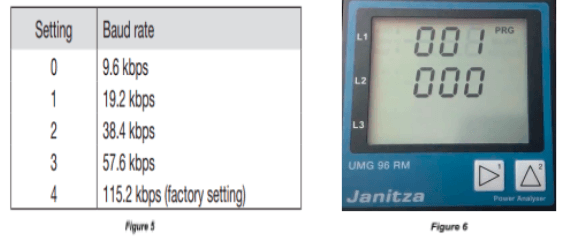
| Baud rate | 4800, 9600 19200 (115200) |
| parity | Even, odd none (none) |
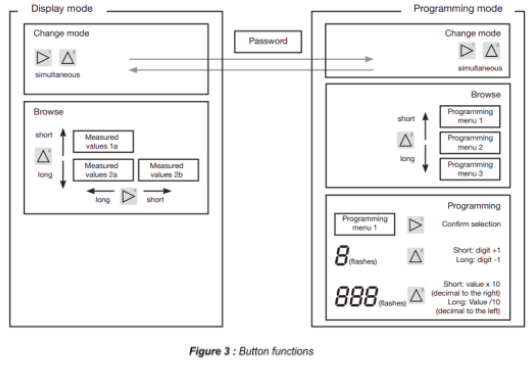
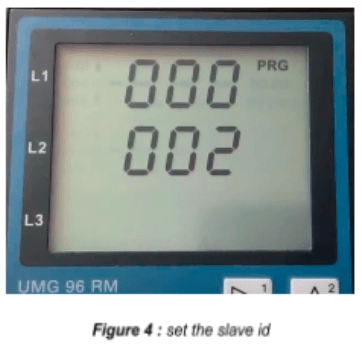
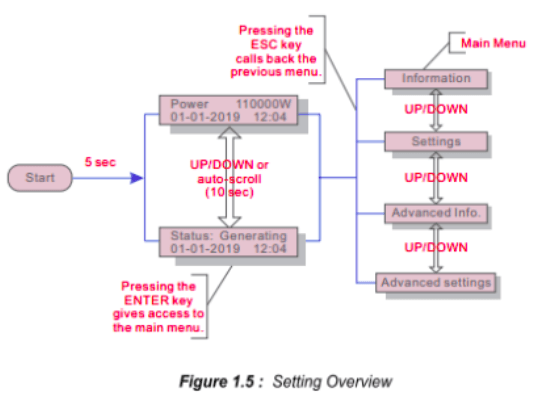
To set the Modbus RTU parameters we have either to use the DSE HMI or use the DSE Configuration Suite PC Software.
❖ Access to the DSE Configuration Suite Software
❖ Navigate to the Serial Port Configuration menu
❖ Configure the Slave ID, Baud Rate and Port Usage according to your Communication Architecture Plan.

ℹ️ For the configuration of ePowerControl, please check the ePowerControl user manual page 40.
Modbus TCP:
– Ethernet connection:

ℹ️ A crossover Ethernet cable (two pairs crossed, two pairs uncrossed) is required to establish a direct connection between the DSE8620 and the Elum controller.

– Modbus TCP setting:
Whilst in the ‘ABOUT’ section, press the Scroll Down 

Press the Scroll Down 

ℹ️ The Elum controller should have the same IP address range.
DSE86xx genset controller
Overview
The DSE86xx is an Auto Mains (Utility) Failure Control Module suitable for paralleling single gensets (diesel or gas) with the mains (utility) supply. Designed to synchronize a single genset with a single mains (utility) supply, the DSE86xx will automatically control the changeover from mains (utility) to generator supply or run the generator in synchronization with the mains (utility) to provide no-break, peak lopping and peak shaving power solutions. The communication protocol embedded is Modbus RTU using half duplex 2 wires connection.
Installation steps
● RS485 | Modbus RTU
- Communication wiring
- Modbus setting
● Ethernet | Modbus TCP
Modbus RTU:
Communication wiring:
DSE86xx RS485 pinout:

Pin mapping to Elum Controller
❖ Remove the terminal block connector from the Elum serial port and connect the wires as shown in the following table:
| DSE86xx Terminal Block | Elum Explorer Serial Port Terminal Block |
| Pin | Pin |
| RS485 B | 3 – Data + |
| RS485 A | 4 – Data – |
| SCR | 5 – GND |
Connect multiple genset controllers in the Daisy Chain:
When connecting multiple genset controllers, the following procedure should be followed:
- Connect the RS485 differential positive and negative signal of the explorer to terminal RS485 B and RS485 A of the first equipment.
- Connect terminal RS485 A and RS485 B of the first inverter in the daisy chain, to terminal RS485 A and RS485 B of other equipment.
- Repeat step 2 for all equipment on the same daisy chain.
- Terminate the daisy chain on both ends using 120 ohms termination resistors.

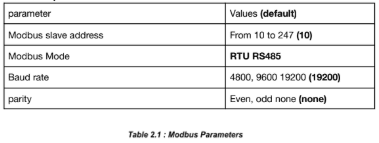
Genset controller parameters:
| parameter | Values (default) |
| Modbus slave address | From 10 to 247(1) |
| Modbus Mode | RTU RS485 |
| Baud rate | 4800, 9600 19200 (19200) |
| parity | Even, odd none (none) |
Table 2.1 : Modbus parameters
To set the Modbus RTU parameters we have either to use the DSE HMI or use the DSE
Configuration Suite PC Software.
- Access to the DSE Configuration Suite Software
- Navigate to the Serial Port Configuration menu
- Configure the Slave ID, Baud Rate and Port Usage according to your Communication Architecture Plan.
ℹ️ For the configuration of ePowerControl, please check the ePowerControl user manual page 40.
Modbus TCP:
– Ethernet connection:

ℹ️ A crossover Ethernet cable (two pairs crossed, two pairs uncrossed) is required to establish a direct connection between the DSE8620 and the Elum controller.

Modbus TCP setting :
Whilst in the ‘ABOUT’ section, press the Scroll Down button to access more information about the network settings.
Network settings can be configured using DSE Configuration Suite Software. The module must be rebooted for the changes to take effect.

Press the Scroll Down 

ℹ️ The Elum controller should have the same IP address range.
Delta
Delta RPI MxA series (RTU Sunspec)
Overview
Delta RPI MxA is a series of 3-phase solar inverters for commercial applications. All delta RPI MxA inverters can communicate with Elum Explorer using Sunspec modbus protocol communication protocol via their RS485 interface. The communication procedures in this section are only dedicated to the following models:
- Delta RPI M15A
- Delta RPI M20A
- Delta RPI M30A
- Delta RPI M50A
Installation steps
- Identification of communication pins
- Wiring to Elum Explorer
- Setting modbus slave address
- Setting the communication protocol to Sunspec
Identification of communication pins
The connections for RS485, the dry contacts and the external power off (EPO) are all located on the communications card. These installation tasks can therefore be combined. The communication card components are shown below:

The RS485 connector is used to connect the inverters of the PV plant to a monitoring system. For connecting RS485, Pins 3 to 6 are used. For connecting RS485, terminals 3/4 or 5/6 are used. It does not matter which pair of terminals you use. The second pair is only when connecting multiple inverters via RS485.

ℹ️ Do not switch on VCC, unless you want to use it, e.g. for an external relais.
Wiring to Elum Explorer
1. Open the inverter according to the inverter‘s instructions.
2. Pull the free wires through the wire opening in the inverter.
3. Connect the wires as shown in the following diagram:
| Elum Explorer Serial Port Terminal Block | Inverter Terminal Block |
| Pin | Pin |
| 3 | 3 |
| 5 | 5 |
| 4 | 4 |
ℹ️ It is recommended to use a shielded twisted-pair cable with solid conductors (CAT
5 or CAT 6, with a Cable diameter of 5 mm and a wire cross-section of 1 mm2
4. If no further inverter is connected, terminate the inverter
5. Close the inverter if no other inverters are to be connected.
6. Insert the terminal block connector into serial port 1 of Elum Explorer.
The RS485 connections on the terminal strip are each double connections so that the wiring can be continued to the next inverter.
When connecting Multiple multiple inverters, the following procedure should be followed:
- Connect the data cable in the free terminals of the first inverter – 2 (GND), 3 (Data+) and 4 (Data-).
- Connect the other end of the data cable in the free terminals of the second inverter – 2
(GND), 5 (Data+) and 6 (Data-). - Connect the other inverters to each other in the same way.
- Terminate the last inverter: Set the switch inside the inverter to ON and all other inverters to OFF.

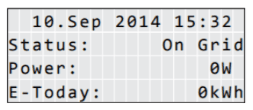
Setting the Inverter ID
Different inverter ID must be set for each device in the serial network. For example, the inverter ID is used by Elum Explorer systems to uniquely identify each device.

1. If the default information is displayed, press any button to open the main menu. Otherwise, press the EXIT button repeatedly until the main menu is displayed

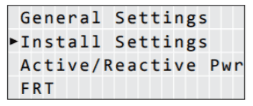
2. Use the UP and DOWN buttons to select the Install Settings entry and then press the ENT button.

3. This function is protected with password 5555. Use the UP and DOWN buttons to set the individual numerals, then press the ENT button to confirm a number.

4. Use the UP and DOWN buttons to select the Inverter ID entry and then press the ENT button. The current inverter ID is displayed after the entry.

5. Use the UP and DOWN buttons to set the inverter ID and then press the ENT button.
Setting the communication protocol to Sunspec:
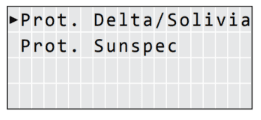
The inverter’s RS485 interface can be configured to enable the inverter to communicate over Sunspec or solivia protocol, in order to communicate with Elum Explorer, the RS485 must be set to Sunspec.
Please navigate to the path Main Menu > General settings > Protocol and make sure that the selected protocol is Sunspec.
Delta RPI-H3 / RPI-H5
Overview
Delta RPI-H3 and Delta RPI-H5 inverters are single-phase grid-tie solar inverters, they can communicate with Elum Explorer over soliavia communication protocol using an integrated RS485 communication module
Installation steps
- Plug in the RS485 communication module
- Set the inverter’s ID
- Wire to Elum Explorer
Taking off the RS485 communication module
The Communication Module enables the inverter to communicate with Elum Explorer and provides 2 ports of RS-485.
When using this module, the first step is to take off the cover located at the right bottom of the inverter and pull out the RS485 socket as shown in the following Figure.

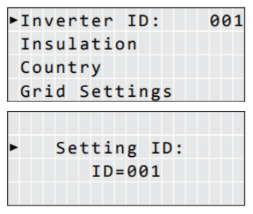
Setting the inverter’s ID
Multiple devices could be monitored via RS-485 daisy chain connection, but each device needs to have a unique communication ID.
- Turn on DC power and wait for the LCD display to be ok
- Press the “Select” button until “Inverter ID: XX” is shown in LCD
- Press and hold both buttons (“Enter” first then “Select”) until entering the setting ID screen
- Release both buttons and set the ID by pressing the “Select” button, and press “Enter” button if the ID is correct (ID = 1 ~ 254)
The inverter ID setting is illustrated in the following figure:

Wiring to Elum Explorer
The RS485 pin description is shown in the following table:
| Pin number | Pin signal |
| 4 | DATA- |
| 5 | DATA+ |
| 7 | GND |
Connect the meter to Elum Explorer as shown in the following table:
| Elum Explorer Serial Port Terminal Block | Inverter RS485 module |
| Pin | Pin |
| 3 | 5 |
| 4 | 4 |
| 5 | 7 |
⚠️ Important
It is essential to connect a resistance of 120 Ohms to the 2 ends of your RS485 network.
ℹ️ For the RS485 lines, It is suggested to use shielded wires.
Eaton System Controller
SC 200
Overview
The SC 200 system controller is an advanced control and monitoring device. The system can communicate with Elum Explorer using TCP modbus protocol communication protocol via Ethernet interface.
Installation steps
- Device Schema
- Wire to Elum Explorer
- Setting and enabling the Modbus TCP protocol
Device Scheme

Wiring to Elum Explorer
Using an Ethernet cable (RJ45), connect the SC 200 from the Ethernet connector (n° 11, refer to the Device Schema part above) to the LAN 1 on the Elum Explorer. If there are several devices using the RJ45 Ethernet cable, use a switch to multiply the Ethernet connectors.
Setting and enabling the Modbus TCP protocol
ℹ️ The SC 200 only accepts one Modbus TCP connection at time, on the reserved Modbus TCP port of 502.
The network administrator must assign a unique IP address to each SC200 to be connected to the TCP/IP network.
SC 200 Setup:
1. Enable the Ethernet Communications:
- From the Keypad:
➛ Go to Settings > Setup.
➛ Enter the IP Address, Subnet Mask and Gateway Address assigned by the network administrator.
➛ If required, set HTTP Access to Enabled for web browser access, or set HTTPS Access to Enabled for secure web access
- Using DCTools:
➛ Connect using USB
➛ In DCTools go to Configuration > Communications
➛ Under Ethernet, enter the IP Address, Subnet Mask and Gateway Address assigned by the network administrator.
➛ If required, set HTTP Access to Enabled for web browser access, or set HTTPS Access to Enabled for secure web access
2. Set the following Modbus TCP parameters:
| Parameter | Description | Where to find: |
| Modbus Access | Set to enabled | SC 200: Settings > Modbus |
| Address | Set to 1 for Modbus TCP | DCTools/ Web: Configuration > Communications > Remote Access Protocols > Modbus |
eGauge
eGauge EG4xxx
Overview
eGauge EG4xxx is used by Elum Energy as a power meter that can measure up to five 3-phases circuits. It can measure and record the total building electrical consumption of individual circuits, these circuits are referred to by Elum as metering points. eGauge devicescommunicate with Elum Explorer over Modbus TCP communication protocol via an Ethernet-RJ45 interface.

ℹ️ Firmware
Make sure that the device’s firmware version is 4.0v or greater.
Installation steps
- Accessing the eGauge
- Setting Modbus Server parameters
- Configuring a Static IP Address
- Wiring to Elum Explorer
Accessing your eGauge
Connect the Ethernet port at the right side of the eGauge to your computer.

Once connected to the computer, you can access your eGauge with a web browser. To start, enter the following Web address into your web browser:
- Microsoft Windows: http://devname/
- All other computers: http://devname.local/
Where devname is the name of the device (e.g., eGauge9999). For example, to access device
eGauge9999, you would enter the following URL into your browser:
- Microsoft Windows: http://egauge9999/
- All other computers: http://egauge9999.local/
You may also use the LCD display to find the local IP address of the eGauge on the network. Use the multi-switch on the main register display to scroll to the last page containing the hostname and IP address of the eGauge. the device will default to using IP address 192.168.1.88, so the device can be accessed as: http://192.168.1.88/.
Setting Modbus Server parameters
Once the device page is working, the modbus parameters should be configured as follows:
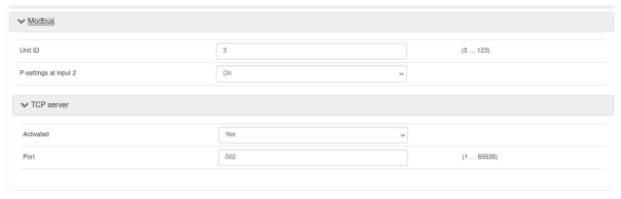
1. Navigate to Settings Settings→Modbus Server, the following settings will show up:

2. Set the unit ID to a unique value in your communication network
3. Enable Modbus TCP server
4. Set the TCP port to 502
5. Save the parameters
Setting static IP address
The eGauge normally automatically obtains its IP address and associated information through a service called Dynamic Host Configuration Protocol (DHCP). If another device ends up using the same address, or a static IP address is required. The IP address can be set as follows:
1. Navigate to Settings→Network Settings. The following page should show up:

2. Disable the DHCP function
3. Set the parameters communicated by Elum
Wiring to Elum Explorer
Connect the Ethernet port of the eGauge to the LAN1 port of Elum Explorer.
⚠️ The total length of the cable must not exceed 300 m
Fronius
Fronius Datamanager 2.0
Overview
The Fronius Datamanager is the communications center for Fronius inverters in every type of application. Elum Explorer communicates with Fronius inverters through the Datamanager over Ethernet | Modbus TCP.
Installation steps
● Configuration
● Wiring to Elum Explorer
Configuration
1. Connect your computer to the Fronius Datamanager using an ethernet cable
2. Switch the white “IP” jumper on the Fronius DataManager to position A :

3. Open a web browser and enter 169.254.0.180 in the URL bar
4. Go to the network configuration menu
5. Set the IP address mode to “static” and choose a free IP on your network (report chosen IP, gateway and DNS in the deployment form)
6. Go to Modbus menu
7. Activate data transfer through Modbus TCP on port 502
8. Activate the inverter control through Modbus
9. Switch back the IP switch to position B
Connection to Elum Explorer
Connect the Ethernet port of the Datamanager to the LAN 1 Ethernet port of the Elum Explorer.
GoodWe
DT series
Overview
The DT series GoodWe inverters can operate as a Modbus RTU slave device by connecting it through the serial port on the Elum Explorer. You will have to assign the addresses by configuring it through the LCD Screen as shown in this description.
Installation steps
- Configuration
- Wiring to Elum Explorer
- Setup on Elum Configuration
Wiring via 2-pin cable with terminal strip plug 
Wiring to Elum Explorer
- Connect wires as shown in the diagram:
Elum Explorer Serial Port Terminal Block X4 socket RS485-1 inverter Terminal Terminal 3 1. RS485 + 4 2. RS485 – - Pass the cable from Elum Explorer to inverter 1 through the cable gland on the underside of the device and connect it to the RS485-Out terminal strip
- Plug the terminal strip plug into the RS485 serial port (1 or 2, depending on which one is available).
Connecting the inverters to each other
- Connect the inverter n° 1 via the RS485 terminal strip according to the manufacturer’s instructions.
- Connect the inverter n° 2 via the RS485 terminal strip from the inverter n° 1 according to the manufacturer’s instructions.
- Connect the other inverters to each other in the same way.
- Insert the terminal block connector into the RS485 serial port (1 or 2, depending on which one is available).
- Connect the last inverter according to the inverter instructions below.

Configuration on the Inverters end
To assign the addresses, use the LCD screen to navigate through the menus as shown below.

MT series
Overview
The MT series GoodWe inverters can operate as a Modbus RTU slave device by connecting it
through the serial port on the Elum Explorer. You will have to assign the addresses by configuring it through the LCD Screen as shown in this description.
Installation steps:
- Configuration
- Wiring to Elum Explorer
- Setup on Elum Configuration
Wiring via 3-pin cable with terminal strip plug 
Wiring to Elum Explorer
- Connect wires as shown in the diagram:
Elum Explorer Serial Port Terminal Block X4 socket RS485-1 inverter Terminal Terminal 3 1. 485_TX + 4 2. 485_TX – 5 3. PE (Earth) Or 3 5. 485_TX + 4 6. 485_TX – 5 4. PE (Earth) - Pass the cable from Elum Explorer to inverter 1 through the cable gland on the underside of the device and connect it with the terminal strip plug.
- Plug the terminal strip plug into the RS485 terminal strip of the inverter.
- Plug the terminal strip plug into the RS485 serial port (1 or 2, depending on which one is available).
Connecting the inverters to each other
- Connect the terminal strip plug into the RS485 socket of the inverter n°1.
- Continue wiring via RS485 socket to inverter 2 (according to manufacturer’s instruction).
- Connect the other terminal strip plug into the RS 485 socket of inverter n°2.
- Connect the other inverters to each other in the same way.
- Insert the terminal block connector into the RS485 serial port (1 or 2, depending on which one is available) as shown in « Figure 1 » and « Table 2 ».
- Connect the last inverter according to the inverter instructions.

Configuration on the Inverters end
To assign the addresses, use the LCD screen to navigate through the menus as shown in the DT
series part.
Huawei
Huawei Smartlogger 1000/2000
Overview
The SmartLogger is an integrated device dedicated to monitoring and managing the PV power system. It converges ports, converts protocols, collects and stores data, and centrally monitors and maintains devices in the PV power system. The Smartlogger allows Modbus TCP communication with Elum Explorer. The Smartlogger allows RS485 or PLC communication with Huawei inverters.
An Elum controller connected to the Smartlogger can monitor and control all the inverters connected to this Smartlogger. All the PV inverters will then be monitored and controlled as one single system.

Installation steps
- Configure the Smartlogger to allow communication with Huawei Inverters
- Connect the Smartlogger to the Huawei inverters
- Configure the Smartlogger to allow Modbus TCP communication with Elum Explorer
- Connect the Smartlogger to Elum Explorer
- Allow remote power control on inverters
- Configure the Smartlogger device on Elum Configuration
Configure the Smartlogger to allow communication with Huawei Inverters
Please refer to Huawei instructions.
Connect the Smartlogger to the Huawei inverters
Please refer to Huawei instructions.
Allow remote power control on inverters
- Log in to the inverter SUN2000 App
- Go to Running Parameters -> Power Adjustment -> Remote Power Schedule
- Enable Remote Power Schedule
Configure the Smartlogger to allow Modbus TCP communication with Elum Explorer
- Log in to the SmartLogger WebUI.
Enter https://XX.XX.XX.XX (XX.XX.XX.XX is the IP address of the SmartLogger) in the
address box of the browser, and press Enter. The login page is displayed. You must log in as an Advanced User or Special User.

2. Navigate to the Comm. Param. / Settings / Modbus TCP / Settings menu

3. Activate Modbus TCP communicating by configuring the Link setting to: Enable
(Unlimited)

4. Apply the following settings
Link setting: Enable (Unlimited)
Address mode: Logical address
SmartLogger address: 1
Connect the Smartlogger to Elum Explorer
Connect the Ethernet port of the Smartlogger to LAN 1 Ethernet port of the Elum Explorer.
Ingenieurburo Mencke & Tegtmeyer
Si-RS485TC-T-Tm-MB, Ta-ext-RS485-MB, Tm-ext-RS485-MB
Overview
Si-RS485TC-T-Tm-MB, Ta-ext-RS485-MB and Tm-ext-RS485-MB sensors can communicate over RS485 | Modbus RTU. However, all the communication setup must be done prior to the commissioning thanks to the SiModbusConfigurator0.n program from your computer. The procedure for the connection and configuration of Si-RS485TC-T-Tm-MB, Ta-ext-RS485-MB and Tm-ext-RS485-MB is the same. In the following sections, the equipment to be configured will be named “sensor”.
SiModbusConfigurator0.n is a software tool to set the MODBUS parameter and test the communication for sensors with RS485 | Modbus RTU protocol.
⚠️ Required materials
- Windows computer with a USB port available
- SiModbusConfigurator0.n program installed on your computer (Internet connection is required for the download of SiModbusConfigurator0.n. It can be directly downloaded from the following link https://www.imt-solar.com/fileadmin/docs/de/produkte/Si-MODBUS-Config urator_0.15.zip
- USB-to-RS485-adapter
Installation steps
- Software installation
- Sensor configuration
- Connect the sensor to Elum Explorer
Software installation
For installation of SiModbusConfigurator0.n execute the file setup.exe of the
SiModbusConfigurator0.n and follow the instructions. If the LabVIEW RunTimeEngine does not exist, it will be installed on your system.
Sensor configuration
The PC system must have an RS485 port installed as a serial COM port. Therefore several
USB-to-RS485-adapters are available.
1. Connect the sensor to the RS485-bus and to a power supply (12…28 Vdc).
| Wire Colour | RS485 Sensor |
| Orange | RS485 Data- /B |
| Brown | RS485 Data+ /A |
| Black | Power supply (negative) |
| Red | Power supply (positive) |
| Black (thick) | Shield |
It is not allowed to drive more than one sensor on the bus during configuration. In case
more than one sensor is installed on the bus system, disconnect bus lines or power supply lines of the sensors that do not need to be configured.
ℹ️ Recommended hardware:
- Isolated USB-RS485 adapter, VendorICPCON, Type I-7561
- Non-Isolated USB-RS485 adapter, Vendor DIGITUS, Type DA-70157
2. Start SiModbusConfigurator0.n

3. Select the COM port the sensor is connected to, and press “Open Port”. If the port is opened successfully, the green LED “Port opened” lights on. If the LED stays off make sure that the port exists and no other application does access to the selected port.

The SiModbusConfigurator0.n tries automatically to connect to the sensor. Therefore the Si-RS485 has to be in configuration mode. As the sensor stays in configuration mode for 4 seconds after power is on you may have to reset the sensor to establish the connection (switch the power supply of the sensor off and on). If the connection is established the green LED “Sensor connected” lights on and the actual MODBUS parameter is read from the Si-RS485.

To change the MODBUS parameter (MODBUS address, baud rate and data format) select the required setting in “MODBUS Parameter” and press “Set Parameter”.
4. Set the RS485 | Modbus RTU communication parameters according to your Communication Architecture Plan

If needed, you can change to MODBUS communication by pressing “Switch to MODBUS mode”. Si Modbus Configurator 0.n re-opens the COM port with the actual bus parameter of the Si-RS485 and Changes to MODBUS communication.

Select the required MODBUS function and press “Send”. SiModbusConfigurator0.n sends the MODBUS command to Si-RS485 and reads the response.
By pressing “Switch to Configuration Mode”, SiModbusConfigurator0.n changes back to configuration mode. For setting the Si-RS485 to configuration mode you have to reset the Si-RS485.
Connect the sensor to Elum Explorer
- Disconnect the RS485 port of the sensor from your computer.
- Connect the RS485 port of the sensor to the Serial Port 1 or 2 of the Elum Explorer.
ℹ️ Troubleshooting
In case you cannot establish a connection to the sensor, please check:
- Is the sensor connected to a power supply (12…28 DC)?
- Is the sensor connected to the RS485 port or RS485 converter correct (data+ and data-not mismatched)?
- Are the hardware drivers of your RS485 converter installed correctly? The RS485 port must appear as a COM port on your operating system.
- Did you select the correct COM port?
- Is the sensor set to configuration mode (switch OFF and ON again during software is waiting for connection)?
- Do you use one of the recommended RS485 adapters? If not, make sure that your RS485 adapter works properly with Si-RS485 sensors
Ingeteam
INGECON® SUN 1Play TL M
Overview
The TL M Series of the INGECON SUN 1Play inverters is a series of solar string inverters ranging from 2.6 to 6KW. It is possible for the Ingeteam inverters to communicate with Elum Explorer over the Modbus RTU protocol via an optional RS485 interface.
In order to connect the inverter to Elum Explorer via RS485, one of the following accessories is needed:
| Code | Description |
| AAX7051 | RS-485 kit for horizontal assembly |
| AAX7052 | RS-485 kit for vertical assembly |
Supported models:
- INGECON® SUN 1Play 2.5TL M
- INGECON® SUN 1Play 3TL M
- INGECON® SUN 1Play 3.3TL M
- INGECON® SUN 1Play 3.68TL M
- INGECON® SUN 1Play 4.6TL M
- INGECON® SUN 1Play 5TL M
- INGECON® SUN 1Play 6TL M
Installation steps
- Installing the RS485 interface in the inverter
- Wiring to Elum Explorer
- Allocating the communication address
Installing the RS485 interface in the inverter
Install the RS485 interface in the inverter in accordance with the interface card installation
instructions sheet.
Wiring to Elum Explorer
The communication cards are wired to the RS485 network as follows:

The RS485 interface pinout table is the following:
| Pin Number | Pin Signal |
| 1 | RS-485 B (+) |
| 2 | RS-485 A (-) |
| 3 | Protection shield |
| 4 | GND |
Connect the meter to Elum Explorer as shown in the following table:
| Elum Explorer Serial Port Terminal Block | SUN 1Play TL M Connector |
| Pin | Pin |
| 3 | 1 |
| 4 | 2 |
| 5 | 4 |
ℹ️ If the inverter is at the end of the daisy chain, the switch in the communication card can be used as a termination resistor.
Allocating the communication address
The Modbus ID is the inverter’s identification number within the communications bus. In order to access and edit the modbus address, navigate through the main menu as shown below:

Set the communication address COMM 2 to a unique value in your RS485 network.
Kaco
Kaco Powador TL3
Overview
The Kaco powador series are three-phase string inverters for photovoltaic systems for both commercial and utility applications. The Powador series inverters communicate with Elum Explorer over Modbus TCP communication protocol via an RJ45 physical interface.
Installation steps
● Wiring to Elum Explorer
● Enable TCP Modbus communication
Wiring to Elum Explorer
An RJ45 wire is needed to connect both ends.
Connect the LAN ethernet wire on the LAN 1 port (or on the switch) of the Elum Explorer to the Ethernet port on the inverter housing door as shown in the following image.

Enable TCP Modbus Communication
In order to activate the Modbus TCP communication protocol, you will need to navigate through the LCD screen as shown:


How to change the IP address of the device and enable DHCP :

KEHUA
KF-BCS-A
Overview
The Kehua France BCS-A series energy-storage converter is designed to convert energy between
storage systems and the electricity distribution grid in both directions. The BCS-A can communicate with Elum Devices over Modbus RTU using one of the device’s RS485 communication interfaces.
Installation steps
● Wiring to Elum Explorer
● Accessing the device as an administrator
● Setting communication parameters
Wiring to Elum Explorer
The RS485 communication interface used to interface with Elum Explorer is located at the external wiring terminal bar of the energy-storage converter as shown in the following figure.

ℹ️ The location of the External Wiring Terminal Bar shown in the image above refers to KF-BCS250K-A. The exact location may differ depending on the exact device reference.
Pins 11 and 12 are used for communication as mapped in the table below.
| Pin number | Pin signal |
| 11 | RS485 A or D- |
| 12 | RS485 B or D+ |
The BCS should be wired to Elum Explorer with reference to the following table:
| Elum Explorer Serial Port Terminal Block | External wiring terminal block |
| Pin | Pin |
| 3 | 12 |
| 4 | 11 |
Accessing the Device as an Administrator
A login as an Administrator might be required to change the device settings. Logging into the device can be done as follows:
– On the main page, press the icon 

ℹ️ Default Passwords
By default, two passwords are implemented in the device:
– The password “111”: Enables the user to change the password of the level
authority (parameters editing is not allowed).
– The password “222”: Enables the user to read and set all parameters.
– Enter the password and Press ENT, then click the Login icon.
Setting communication parameter
The device communication identifier and baud rate can be set using the device’s Touch Screen. The path to access the communication parameters is marked in the following diagram:

ℹ️ For Elum applications, it is recommended to set the baud rate to 9600 bps.
Kipp & Zonen
SMP 10
Overview
The smart Pyranometer SMP10 is a device which allows the measurement of hemispherical solar radiation. All pyranometers within the SMP series can communicate with Elum Explorer using RTU modbus protocol communication protocol via RS485 interface.
Installation steps
- Identification of wiring pins
- Wiring to Elum Explorer
- Setting modbus slave address
ℹ️ Tools required to fit an SMP series to a support:
– 4 mm Allen key for the M5 socket head screw
– 8 mm wrench/spanner for the M5 nut
When using the digital output, it might be convenient to set the Modbus address prior to visiting the site, otherwise a computer and RS485/USB converter may be required during the installation.
Identification of the communication wires
The communication pins are located on the output cable as shown in the picture below:

Wiring to the Elum Explorer
| Elum Explorer Serial Port Terminal Block | SMP wires |
| Pin | Wires |
| 3 | Modbus RS485 B/B’/+ (Yellow) |
| 4 | Modbus RS485 A/A’/- (Grey) |
| 5 | Modbus common / Ground (Black) |
The communication cables must be wired as shown in the schema below in the case of multiple devices on the RS485 network.

The Slaves may be an SMP Pyranometer or other devices but the master, the last device on the RS485 network must be the Elum Explorer. The LT (line terminator) consisting of a 120 Ω or 150 Ω resistor, must be connected between terminals A/A’/- and B/B’/+.
ℹ️ Never place this line terminator on the derivation cable.
Setting modbus slave address
The factory default communication parameters for all Smarts are:
– Baudrate: 19200 baud
– Size and Parity: 8 bits – even – 1 stopbit
– Modbus Slave address: 1
Moxa
MGate MB3170 and MB3270
Overview
The MGate MB3170 and MB3270 are 1 and 2-port advanced Modbus gateways that convert between Modbus TCP and Modbus ASCII/RTU protocols. They can be used to allow Ethernet masters to control serial slaves, or to allow serial masters to control Ethernet slaves. Up to 32 TCP masters and slaves can be connected simultaneously. The MGate MB3170 and MB3270 can connect up to 31 or 62 Modbus RTU/ASCII slaves, respectively.
Installation steps
- Installing the MGate
- Configuring the MGate
- Connecting the MGate to the slaves
- Connecting the MGate to the master i.e. the Elum Explorer
- Configuring the Elum Explorer
Installing the MGate
The MGate MB3170/3270 is designed to be attached to a DIN rail or mounted on a wall. The two sliders on the MGate MB3170/3270 rear panel serve a dual purpose. For wall mounting, both sliders should be extended. For DIN-rail mounting, start with one slider pushed in, and the other slider extended. After attaching the MGate MB3170/3270 on the DIN rail, push the extended slider in to lock the device server to the rail. The two placement options are illustrated in the accompanying figures
Connect the 12 to 48 VDC power source to the terminal block power input, use Power Input 1 and Shielded Ground.

Configuring the MGate
Connect your laptop to port LAN 1 of the MGate using an Ethernet cable.
Open your favorite web browser and enter 192.168.127.254 in the URL bar.
ℹ️ To access the Moxa MGate configuration local web page, the Ethernet port of your computer should be configured in DHCP mode.
Login into the Moxa configuration platform using the default user credentials:
– Default account: admin
– Default password: moxa

Configure the Network settings according to your Communication Architecture Plan from the Network Settings menu.

Configure the RS485 settings of each port according to your Communication Architecture Plan from the Serial Settings menu.

Depending on your Communication Architecture Plan you might also need to add routing to each of the serial ports of the MGate, from the Serial Settings/Protocol Settings/Modbus Routing menu.
Save and restart the settings applied in the MGate from the Save/Restart menu, to do so, just click on Submit.

Connecting the MGate to the slaves
The MGate MB3170 has a male DB9 port and a terminal block for connecting to serial devices. The MGate MB3270 has two DB9 connectors for connecting to serial devices.
Connect the MGate to the different slaves to be monitored and/or controlled by the Elum Explorer according to your Communication Architecture Plan.

Connecting the MGate to the master i.e. the Elum Explorer
Remove your laptop and connect port LAN 1 of the Elum Explorer to the port LAN 1 of the MGate using an Ethernet cable.
Configuring the Elum Explorer
Connect your laptop to the port LAN2 of the Central Computing unit. Open your favorite web browser and enter 192.168.4.127 in the URL bar.
ℹ️ To access the Elum Configuration local web page, the Ethernet port of your
computer should be configured in DHCP mode.
The Network Panel configures the LAN port connected to the MGate according to your
Communication Architecture Plan.
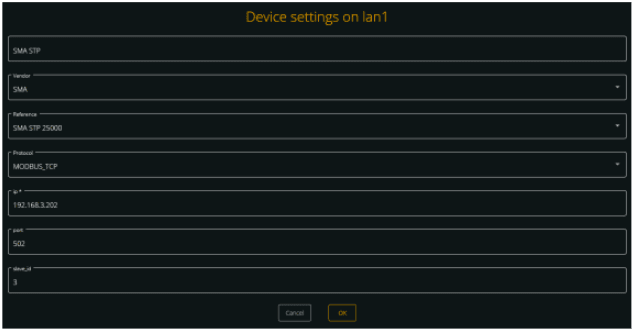
Add a device on this same LAN port connected to the MGate and configure it as described below:
– Reference: “Reference of your equipment via MGate”
– Protocol: MODBUS_TCP
– IP: IP of the MGate
– Port: Port associated used to connect the device to the MGate
– Slave_id: Slave ID of the device connected to the MGate

Renogy
Renogy Rover series
Overview
The Rover series charge controllers are suitable for various off-grid solar applications. This Battery management system can communicate with Elum Explorer over Modbus RTU via an RS232 physical interface.


Installation steps
● Wiring to Elum Explorer
Wiring to Elum Explorer
From the rover’s end:

| Rovers pin number | Description |
| 1 | DCD |
| 2 | Rx |
| 3 | Tx |
| 4 | DTR |
| 5 | GND |
| 6 | DSR |
| 7 | RTs |
| 8 | CTs |
| 9 | RI |
From the explorer’s end:

| Explorer Serial port pin number | Description |
| 1 | TxD |
| 2 | RxD |
| 3 | RTs |
| 4 | CTs |
| 5 | GND |
Wiring both ends:
| RS 232 Pin Number | Description | Elum Explorer serial port PIN |
| 3 | TxD | 1 |
| 2 | RxD | 2 |
| 7 | RTs | 3 |
| 8 | CTs | 4 |
| 9 | GND | 5 |
Schneider Electric
PM5320 Schneider power meter
Overview
The PM5300 is a power meter provided for the measurement and calculation of electrical
parameters such as voltage, current, power, energy, etc. for building installations, to distributors, circuit breakers and busbar trunking systems. The communication protocol embedded is Modbus RTU using half duplex 2 wires connection.
Installation steps
- Wire communication
- Set Modbus
Communication wiring:
PM3500 RS485 pinout:

Pin mapping to Elum Controller:
❖ Remove the terminal block connector from the Elum serial port and connect the wires as shown in the following table:
| PM5300 RS485 Terminal Block | Elum Explorer Serial Port Terminal Block |
| Pin | Pin |
| 22 – Data + | 3 – Data + |
| 23 – Data – | 4 – Data – |
| 24 – GND | 5 – GND |
| 25 – SHLD | 5 – GND |
Connect multiple devices in a single Daisy Chain:
When connecting multiple equipments, the following procedure should be followed, as per the diagram (figure1.2):
- Connect the RS485 cable from the Elum unit terminal to the serial port of the first meter.
- Connect the RS485 cable from the first-meter serial port to the second-meter serial port.
- Repeat step 2 for all equipment on the same daisy chain.
- Terminate the daisy chain on both ends using 120 ohms termination resistors.

| parameter | Values (default) |
| Modbus slave address | From 1 to 247 (1) |
| Modbus Mode | RTU RS485 |
| Baud rate | 9600, 19200, 38400 (19200) |
| parity | Even, odd, none (even) |
| Maximum slave response time | 10 |
| CT ratio | Divide the primary current by the secondary current |
| VT ratio | Divide the primary voltage by the secondary voltage |
ℹ️ CT ratio: current transformer ratio. To be set according to the CTs used with the power meter. For example, when using 200 A to 5 A CTs, the ratio will be 200/5 = 40.
VT ratio: voltage transformer ratio. To be set according to the VTs used with the
power meter. For example, when installing the meter on low voltage using no VTs, the ratio will be set to 1.
Modify the Modbus parameters:
- Navigate to Maint > Setup.
- Enter the setup password (default is “0”), then press OK.
- Navigate to Comm > Serial.
- Move the cursor to point to the parameter you want to modify, then press Edit.
- Modify the parameter as required, then press OK.
- Move the cursor to point to the next parameter you want to modify, press Edit, make your changes, then press OK.
- Press the up arrow to exit. Press Yes to save your changes
ℹ️ For the configuration of ePowerControl, please check the ePowerControl user manual on page 40.
Schneider Conext CL36
Overview
The Conext CL36 is a string inverter for commercial and industrial buildings, car ports, PV Diesel Hybrid and AC-coupled systems. The CL36 inverter communicates with Elum Explorer over Modbus communication protocol via its RS485 physical interface.
Installation steps
- Wire to Elum Explorer
- Set the Modbus Slave Address
Wiring to Elum Explorer
The location of the terminals on the communication card is shown below, where the Modbus RS485 connection can be wired through terminal connectors.

A switch on the communications card connects the 120 ohm terminating resistor where it is required. The terminating resistor is required at the start and end of a daisy chain.
ℹ️ RISK OF EQUIPMENT DAMAGE
Make sure the other end of the Modbus (RS485) connection is also Modbus (RS485). Connection to any other type of communication port, such as Ethernet,
may result in equipment damage. Install suitably rated surge protection devices on the RS485 line.
Failure to follow these instructions can result in equipment damage
Connect the wires as shown in the following table:
| Elum Explorer Serial Port Terminal Block | Inverter Terminal Block |
| Pin | Pin |
| 3 | A |
| 4 | B |
| 5 | 0 |
The RS-485 bus is a multi-drop bus and can be implemented as a daisy chain as shown below. The RS485 Bus terminals and connectors are provided to ease the daisy chain connection. Either port can be connected to the upstream or downstream devices.

ℹ️ It is recommended to use 24 AWG, 1.5 STP cable with ferrules.
⚠️ Using the incorrect pinout for the RS-485 cable and interchanging the GND pins may result in discontinuity on the network and poor communication.
Setting the Modbus Slave Address
The Modbus slave address must be unique for each device on the Modbus network. The Modbus slave address may be read and/or modified via the Conext CL36 HMI. The Conext CL36 inverter address is selected using the menus shown below.

Once the desired Conext CL36 inverter address is selected, press the back button to confirm the address. The Conext CL36 inverter address can be any number between 1 and 247.
ℹ️ Please keep all other Modbus communication parameters as default (Baud rate: 9600, parity: none, Stop bit: 1).
Schneider PM2200 series
Overview
The PM2200 series are digital meters that offer 3-phase electrical instrumentation and load management facilities. Elum Explorer communicates with the PM2200 series over Modbus RTU.
Installation steps
- Wiring to Elum Explorer
- Configuration
Wiring to Elum Explorer
The RS-485 can be found on the bottom of the device.

It is recommended to use a shielded 2-twisted pair or 1.5-twisted pair RS-485 cable to wire the devices. Use one twisted pair to connect the (+) and (-) terminals, and use the other insulated wire to connect the C terminals. Connect the wires as shown in the following table:
| Elum Explorer Serial Port Terminal Block | Meter Terminal Block |
| Pin | Pin |
| 3 | D+ |
| 5 | C |
| 4 | D- |
ℹ️ If some devices in your RS-485 network do not have the C terminal, use the bare wire in the RS-485 cable to connect the C terminal from the meter to the shield terminal on the devices that do not have the C terminal.
Configuration
- Navigate to Maint > Setup
- Enter the setup password (default is “0”), then press OK.
- Navigate to Comm.
- Make sure that the serial port communication is enabled.
- Make sure that you don’t have the same slave address in other equipment in your RS-484 network.
- Set the Baud rate to 9600.
- Parity: none.
KohlerSdm
APM403 - TCP
Overview
The APM 403 is an instrumentation and control system for generating sets. APM 403 controllers communicate with Elum Explorer over Modbus TCP via a dedicated communication plug-in module.
Installation steps
- Plugging-in CM-Ethernet Modbus communication module
- Setting the CM-Ethernet parameters
- Wiring the inverters to Elum Explorer
Plugging-in CM-Ethernet Modbus communication module
CM-Ethernet is an optional plug-in card to enable APM to communicate over Modbus TCP using an Ethernet 10/100 Mbit interface in RJ45 connector.

ℹ️ IMPORTANT
Any manipulation with plug-in modules shall be done with a disconnected power supply to the controller.
The module is plugged into slot B located on the rear side of the controller, the procedure is as follows:
- Remove the back cover. To do this, press four holders which are located in the corners.
- Insert the plug-in module under holders marked by symbol 1. Then insert the plug-in module under holders marked by symbol 2.
- After locking the plug-in module into the holders, place back the back cover.

- Finally insert the small cover for the connectors. Small covers are unique for each plug-in module.
Check that slot B has been properly “occupied”. From the main screen, press twice to display the “Plug-in Modules” screen. The display must be as shown in the figure opposite (for slot B).

Accessing the CM-Ethernet parameters
To change any of the parameters of the CM-Ethernet module, the APM403 must be in “Advanced”
mode.
- From any measurement display screen, press
and
simultaneously.
- Press four times
.
- Select “Advanced” mode using
.
- Press
, wait 8 seconds, and the main display appears automatically.
Setting the CM-Ethernet communication parameters
- From the main screen, press
, the “Main Menu” screen appears and “Password” is selected.
- Press
as many times as necessary until you reach “CM-Ethernet”.
- Press
to access the advanced settings menu contents.
ℹ️ If it is necessary to enter a password or to access and modify one or more parameters, refer to paragraph 11 of the APM403 user manual.
Make sure that the Modbus server is enabled. Set the IP address mode to “Fixed” and the
other parameters according to your communication architecture plan.
ℹ️ Every device should have a unique IP address.
Every device must be in the same sub-network as the Elum Explorer.
The sub-network cannot be 192.168.4.XX, which is reserved for configuration over LAN port n°2 of the explorer.
Wiring to Elum Explorer
Connect the RJ45 port of the communication module to the LAN port n°1 of Elum Explorer directly, via a router or using a switch.
ℹ️ LAN port n°2 of the Explorer cannot be used for monitoring and control purposes,
it can only be used to connect your computer and access to Elum Configuration.
⚠️The total Ethernet cable should not exceed 300 m.
APM403 - RTU
Overview
This guide supports 2 models of Kohler sdmo genset controller APM403P and APM403S. The communication protocol embedded is Modbus RTU using a half duplex 2 wires connection.
Installation steps
- Communication wiring
- Modbus setting
APM403 Connecting RS485 Communication Cables:
APM403 RS485 pinout:

| Pin | definition |
| A | RS485 Data + |
| Com | GND |
| B | RS485 Data – |
Pin mapping to Elum Controller
❖ Remove the terminal block connector from the Elum serial port and connect the wires as shown in the following table:
| APM403 Terminal Block | Elum Explorer Serial Port Terminal Block |
| Pin | Pin |
| A | 3 – Data + |
| B | 4 – Data – |
| Com | 5-GND |
Connect multiple genset controllers in the Daisy Chain:
When connecting multiple equipments, the following procedure should be followed, as per the diagram (figure1.2):
- Connect the RS485 differential positive and negative signal of the explorer to terminal RS485 A and RS485 B of the first equipment.
- Connect terminal RS485 A and RS485 B of the first inverter in the daisy chain, to terminal RS485 A and RS485 B of other equipment.
- Repeat step 2 for all equipment on the same daisy chain.
- Terminate the daisy chain on both ends using 120 ohms termination resistors.

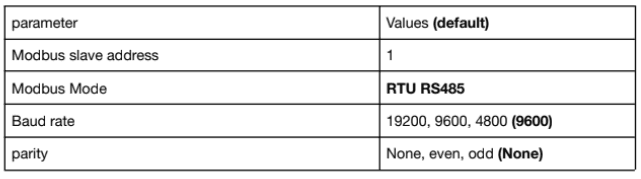
The controller parameters:
Modify the slave id and the baud rate:
Go to the APM403 configuration software and adapt the communication Mode and set the parameters baud rate and salve id.
ℹ️ To read and write on all registers it is necessary to set the inter frame delay to 300 or higher.
ℹ️ For the configuration of ePowerControl user manual page 40.
Polier Power meter: Connect & Config Guide
MTR5LMOD Polier power meter
Overview
The MTR5LMOD is a power meter provided for the measurement and calculation of electrical parameters such as voltage, current, power, energy, etc. for building installations, to distributors, circuit breakers and busbar trunking systems.
The communication protocol embedded is Modbus RTU using a half duplex 2 wires connection.
Installation steps
- Communication wiring
- Modbus setting
Communication wiring:
MTR5LMOD RS485 pinout:

Pin mapping to Elum Controller
❖ Remove the terminal block connector from the Elum serial port and connect the wires as shown in the following table:
| MTR5LMOD Terminal Block | Elum Explorer Serial Port Terminal Block |
| Pin | Pin |
| 23-B | 3 – Data + |
| 24-A | 4 – Data – |
Connect multiple devices in a single Daisy Chain:
When connecting multiple types of equipment, the following procedure should be followed, as per the diagram (figure1.2):
- Connect the RS485 cable from the Elum unit terminal to the serial port of the first meter.
- Connect the RS485 cable from the first meter serial port to the second meter serial port.
- Repeat step 2 for all equipment on the same daisy chain.
- Terminate the daisy chain on both ends using 120 ohms termination resistors.
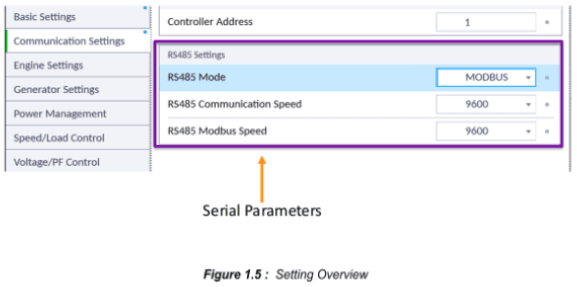
Modbus setting:
In order to modify the Modbus parameters, press the right button for 5 to 8 seconds from the measurement menu using the LCD screen. The table below shows how to navigate within the setting menu:
ℹ️ To enter the programming menu, press and hold the right button for 5 to 8 seconds
from the info menu.
A password will be required, per default, it is 001. Type the password, click and
hold on the right button for 5 to 8 seconds to validate the modification.
The system will Return to the measurement menu after 30 seconds of inactivity.
How to modify the parameters in the meter menu, for example, the slave ID:
- Go to register 45 (use left button).
- Keep the right button pressed for 5 to 8 seconds => the numbers are blinking
- Enter your preferred address [1;247] with the left and right buttons
- Keep the right button pressed for 5 to 8 seconds => the numbers blink more
ℹ️ CT ratio: current transformer ratio. To be set according to the CTs used with the power meter. For example, when using 200 A to 5 A CTs, the ratio will be 200/5 = 40.
VT ratio: voltage transformer ratio. To be set according to the VTs used with the power meter. For example, when installing the meter on low voltage using no VTs, the ratio will be set to 1.
ℹ️ For the configuration of ePowerControl, please check the ePowerControl user manual page 40.
Janitza Power meter
UMG 96RM Janitza power meter
Overview
The UMG 96RM is provided for the measurement and calculation of electrical parameters such as voltage, current, power, energy, harmonics, etc. for building installations, to distributors, circuit breakers and busbar trunking systems. The communication protocol embedded is Modbus RTU using half duplex 2 wires connection.
Installation steps
- Communication wiring
- Modbus setting
Communication wiring:
UMG 96RM RS485 pinout:

Pin mapping to Elum Controller:
❖ Remove the terminal block connector from the Elum serial port and connect the wires as shown in the following table:
Connect multiple devices in a single Daisy Chain:
When connecting multiple equipment, the following procedure should be followed, as per the diagram (figure 2):
- Connect the RS485 differential positive and negative signal of the explorer to terminal A and B of the first power meter.
- Connect terminals A and B of the power meter in the daisy chain, to the terminal positive and negative signal of other equipment.
- Repeat step 2 for all equipment of the daisy chain.
- Add the matching resistor for the last piece of equipment.

● Modify the slave ID
If several devices are connected to one another via the RS485 interface, the explorer can only differentiate between these devices by means of their slave id. Therefore, each device in a network must have different IDs. IDs can be set in the range from 1 to 247.
To change the slave id you have to write to the address 000 (example slave id =2, see figure 4).
ℹ️ The adjustable range of the device address is between 0 and 255. The values 0 and 248 to 255 are reserved and may not be used.
● Modify the Baud rate
A common baud rate is adjustable for the RS485 interfaces. The baud rate must be chosen to be a uniform value in the network.
To change the baud rate you have to write to the address 001(example slave baud rate=9600, see figure 6).
ℹ️ For the configuration of ePowerControl, please check the ePowerControl user manual page 40.
ItMikro
DPM 680 iTMikro power meter
Overview
The DPM680 Digital Power Meter is equipped with multiple communication capabilities for SCADA and remote monitoring purposes. In particular, its Modbus communication capabilities can be realized either through the Modbus RTU or Modbus TCP/IP system. In this document, we are going to see how to read the measurement results over the RS485 interface.
Installation steps
- Communication wiring
- Modbus setting
DPM 680 Connecting RS485 Communication Cables:
DPM 680 RS485 pinout:
Pin mapping to Elum Controller
❖ Remove the terminal block connector from the Elum serial port and connect the wires as shown in the following table:
Connect multiple devices in a single Daisy Chain:
When connecting multiple equipment, the following procedure should be followed, as per the diagram (figure1.2):
- Connect the RS485 cable from the Elum unit terminal to the serial port of the first meter.
- Connect the RS485 cable from the first-meter serial port to the second-meter serial port.
- Repeat step 2 for all equipment on the same daisy chain.
- Terminate the daisy chain on both ends using 120 ohms termination resistors.
ℹ️ CT ratio: current transformer ratio. To be set according to the CTs used with the power meter. For example, when using 200 A to 5 A CTs, the ratio will be 200/5 = 40.
VT ratio: voltage transformer ratio. To be set according to the VTs used with the power meter. For example, when installing the meter on low voltage using no VTs, the ratio will be set to 1.
Modify the slave ID and the baud rate:
The Modbus sub-page displays and allows the setting of Modbus communication parameters as shown in the following figure
- to input new settings, touch the SET button.
- touch the BACK (F1) button to return to the Communication Settings page (only for DPM680) or the SETTING sub-menu.
- to increase the number or select the next option, touch the UP (F2) button.
- to decrease the number or select the prior option, touch the DOWN (F3) button.
ℹ️ For the configuration of ePowercontrol, please check the ePowercontrol user manual on page 40.
Growatt
MAX 50-100K inverters
MAX 50-100K, used for both commercial rooftop and ground-mounted solar plants, the max series on-grid inverter is designed with up to 100kw big capacity. with up to 6 or 7 mpp trackers. The communication protocol embedded is Modbus RTU using half duplex 2 wires connection.
Installation steps
- Communication wiring
- Modbus setting
Communication wiring:
MAX 50-100K RS485 pinout:
Connect inverters to Elum Explorer
❖ When connecting multiple equipment, the following procedure should be followed, as per the diagram (figure3):

Connect multiple inverters in the Daisy Chain:
When connecting multiple inverters, the following procedure should be followed:
- Connect the RS485 differential positive, negative signal and GND of the explorer to terminal RS485A port1, RS485B port1 and GND of the first inverter.
- Connect terminal RS485A port2 and RS485B port2 of the first inverter in the daisy chain, to terminal RS485A port1 and RS485B port1 of another inverter, and then the GND of all inverters should be shorted together by wire.
- Repeat step 2 for all inverters of the daisy chain.
- Increase the matching resistance by changing the jumper cap of the CN5 pin header on the Connector Board of the last inverter from the default 2/3 pin to 3/4 pin (see figure 2)

Modify the Slave ID and the baud rate
Install the ShinePhone APP here, and connect to inverter WIFI to enter the local monitoring page, this operation is performed by a professional.
➔ Click “Parameters”;
➔ Enter password.(When you use it for the first time, you need to set the password first. Click “Reset password” to enter the OSS account number and password. The distributor and installer can apply for the OSS account from Growatt. Click “Sign in” to set the password. After the setting is successful, you can start using it.)
➔ Click top item “COM Address”;
➔ Click the ” Read” button in the upper right corner to read the current communication address of the inverter;
➔ Set inverter com address;
➔ Read inverter com address to ensure setting is successful;


ℹ️ For the configuration of ePowerControl, please check the ePowerControl user manual page 40.
Cummins
Power Command 3.3 genset controller
Overview
Cummins Power Generation PowerCommand Controls are the generator set digital paralleling controls responsible for synchronizing, load sharing, protection, metering and monitoring suitable for any power system application needs. The communication protocol embedded is Modbus RTU using half duplex 2 wires connection.
Installation steps
- Communication wiring
- Modbus setting
Communication wiring:
Power Command 3.3 RS485 pinout:
Pin mapping to Elum Controller
❖ Remove the terminal block connector from the Elum serial port and connect the wires as shown in the following table:
Connect multiple genset controllers in the Daisy Chain:
When connecting multiple genset controllers, the following procedure should be followed:
- Connect the RS485 differential positive and negative signal of the explorer to terminal RS485 A and RS485 B of the first equipment.
- Connect terminal RS485 A and RS485 B of the first inverter in the daisy chain, to terminal RS485 A and RS485 B of other equipment.
- Repeat step 2 for all equipment on the same daisy chain.
- Terminate the daisy chain on both ends using 120 ohms termination resistors.
ℹ️ For the configuration of ePowerControl, please check the ePowerControl user manual page 40.
CanadianSolar
CSI_3P(25-50)K inverters
Overview
This guide supports 7 models, as listed below:
CSI-25K-T400GL02-E, CSI-30K-T400GL02-E, CSI-33K-T400GL02-E, CSI-36K-T400GL02-E, CSI-40K-T400GL02-E, CSI-40K-T500GL02-E and CSI-50K-T500GL02-E
The communication protocol embedded is Modbus RTU using half duplex 2 wires connection.
Installation steps
- Communication wiring
- Modbus setting
Communication wiring:
RS 485 pin mapping:
Pin mapping to Elum Controller
❖ Remove the terminal block connector from the Elum serial port and connect the wires as shown in the following table:
Connect multiple inverters in the Daisy Chain:
When connecting multiple equipment, the following procedure should be followed, as per the diagram (figure1.2):
- Connect the RS485 differential positive and negative signal of the explorer to terminal RS485 1A IN and RS485 1B IN of the first inverter.
- Connect terminal RS485 2A OUT and RS485 2B OUT of the first inverter in the daisy chain, to terminal RS485 1A IN and RS485 1B IN of another inverter.
- Repeat step 2 for all inverters of the daisy chain.
- Set the matching resistor for the last inverter.
In a normal operation, the LCD screen alternates between displaying inverter power and operation status (see Figure 1.5). The screen can be scrolled manually by pressing the UP/DOWN keys. Pressing the ENTER key gives access to the Main Menu.
Inverter slave ID:
This function is used to set the address when multiple inverters are connected to the monitoring system/control system. The address number can be assigned from “01” to “99”(see Figure 1.6). The default address number of the Canadian Solar Three Phase Inverter is “01”.
Press the UP/DOWN keys to set the address. Press the ENTER key to save the settings. Press the ESC key to cancel the change and return to the previous menu.
ℹ️ To read and write on all registers it is necessary to set the inter-frame delay to
300 or higher.
ℹ️ For the configuration of ePowerControl, please check the ePowerControl user
manual on page 40.
SolaxPower
X3-60KTL mega inverters
Overview
X3-60KTL is a three-phase grid-tied PV string inverter (transformerless) that converts the DC power generated by PV strings into AC power. The communication protocol embedded is Modbus RTU using half duplex 2 wires connection.
Installation steps
- Communication wiring
- Modbus setting
X3-60KTL Connecting RS485 Communication Cables:
X3-60KTL RS485 pinout:
RS485 Connection steps:
- Remove the wiring chamber on the right of the inverter, and loosen the locking cap on the 485 waterproof cable connector from the bottom of the inverter.
- Remove an appropriate length of the insulation layer from the communication cable, loosen the screw lock to take out the panel, insert the cable into the waterproof cable connector, and tighten the locking cap.
Pin mapping to Elum Controller
❖ Remove the terminal block connector from the Elum serial port and connect the wires as shown in the following table:
Connect multiple devices in a single Daisy Chain:
When connecting multiple equipment, the following procedure should be followed, as per the diagram (figure 2):
- Connect the RS485 differential positive and negative signal of the explorer to terminal 1A and 1B of the first inverter.
- Connect terminals 2A and 2B of the first inverter in the daisy chain, to terminals 1A and 1B of the following inverter.
- Repeat step 2 for all equipment on the same daisy chain.
- Terminate the daisy chain: on the Elum Explorer end using 120 ohms termination resistors, on the last inverter end by enabling the “terminal resistor” setting (using SolaxProject interface) please refer to figure 4.
Setting the Inverter ID and communication parameters:
Inverter Parameters:
ℹ️ When connecting multiple inverters on the same daisy chain, make sure that each device has a unique slave ID (Modbus slave Address).
● Modify the RS485 parameter and enable the terminal resistor:
➔ Download and install the SolaX-Project APP here, open the inverter and connect your phone to the inverter using Bluetooth. Once it’s connected click on the Local setting button:

● Enable the control using external devices:
To enable the power control using Elum ePowerControl the External device option needsto be selected within the power control menu.
ℹ️ For the configuration of ePowerControl, please check the ePowerControl user manual page 40.
ℹ️ To read and write on all registers it is necessary to set the inter frame delay to 350 or higher, if you use the default value you will only be able to access 21 registers.
SMA
Data Manager M
Overview
The SMA Data Manager M is a data logger that acts as a system gateway and energy manager. PV system components and PV systems are integrated into the SMA infrastructure via the SMA Data Manager M.
Installation steps
- Ethernet | Modbus TCP
Communication wiring:
– Modbus TCP setting:
To connect a web browser to the product, the serial number of the product must be available. The serial number is part of the access addresses of the product.
- Access address for Apple and Linux systems: SMA[serial number].local (e.g.
SMA0123456789.local) - Access address for Windows and Android systems: https://SMA[serial number] (e.g. https://SMA0123456789)
Go to Device parameters and set the IP address in the External communication section.
ℹ️ For the configuration of ePowerControl, please check the ePowerControl user manual page 40.
SMA Sunny Tripower
Overview
The Modbus interface of the supported SMA products is designed for industrial use and has the following tasks:
– Remote control of the grid management services of a PV system
– Remote-controlled querying of the measured values of a PV system
– Remote-controlled changing of the parameters of a PV system
The Modbus interface can be used via the protocol Modbus TCP.
Installation steps
- Configuration
- Wiring to Elum Explorer
- Setup on Elum Configuration
Configuration
- Establish a connection to the user interface (see the inverter manual).
- Log into the user interface as an Installer.
- Select the Device Parameters tab.
- Select [Edit parameters].
- Select System Communication and disable the Automatic configuration switched on. Set the IP address Subnet Mask and Gateway accordingly to your local network.
6. Select the parameter group External Communication.
7. To activate the TCP server, make the following settings in the group Modbus > TCP Server:
- In the drop-down list Activated, select the entry Yes.
- If necessary, change the port in the field Port (default setting: 502)
Connection to Elum Explorer
Connect the Ethernet port of the inverter to the LAN 1 Ethernet port of the Elum Explorer.
Setup on Elum Configuration
When adding the SMA Sunny Tripower on Elum Configuration, you must indicate slave_id : 3.
SMA Sunny Tripower + SMA RS485 piggyback + SMA RS485 data module
Overview
SMA inverters do not have an integrated RS485 interface. However, the following RS485 interfaces can be retrofitted to SMA inverters:
– SMA RS485 piggyback card
– SMARS485 data module
The Modbus interface of the supported SMA products is designed for industrial use and has the
following tasks:
– Remote control of the grid management services of a PV system
– Remote-controlled querying of the measured values of a PV system
– Remote-controlled changing of the parameters of a PV system
The Modbus interface can be used via the protocol Modbus RTU.
ℹ️ Interface not integrated; retrofit the SMA RS485 piggyback card
ℹ️ Communication address does not have to be assigned
Installation steps
● Switch off the inverters
● Installing the original SMA RS485 piggyback in the inverter
● Connect inverters to Elum Explorer
● Connect the inverters to each other
Installing the original SMA RS485 piggyback in the inverter
The Modbus interface can be used via the protocol Modbus RTU.
ℹ️ Where to connect: Terminal strip inside the inverter on the piggyback
Install the original SMA RS485 piggyback in the inverter per the interface card installation
instructions. http://files.sma.de/dl/22128/485i-Module-IA-en-19W.pdf
Connect inverters to Elum Explorer
ℹ️ The wiring is done using a self-made, shielded 3-wire data cable and terminal block
connector.
1. Open the inverter as shown in the inverter’s instructions.
2. Pull the free wires through the wire opening in the inverter.
3. Pull the cable through the insulation tube.
ℹ️ The wire must be enclosed in the insulating hose inside the inverter.
4. Connect the wires as shown in the following diagram:
| Elum Explorer Serial Port Terminal Block | X4 socket RS485-1 inverter |
| Pin | Pin |
| 3 | 2 |
| 5 | 5 |
| 4 | 7 |
5. Ground the connection: Connect terminal 5 on the inverter to the inverter housing using the
supplied flat strip connector.
6. If only one inverter is to be connected it must be terminated.
7. Put the supplied jumper onto the lower pins on the connector strip.

8. Close the inverter if no other inverters are to be connected.
9. Insert the terminal block connector into the Elum Explorer.
Connect the inverters to each other
ℹ️ Where to connect: Terminal block in the inverter (on the retrofitted RS485 interface)
ℹ️ Connect using a 3-wire, shielded data cable
1. Open the inverter as shown in the inverter’s instructions.
2. Connect the inverter in accordance with the inverter installation instructions.
3. If no further inverter is connected, terminate the inverter:
4. Put the supplied jumper onto the lower pins on the connector strip.

5. Close inverters.
SMA Sunny Island
Overview
The Modbus interface of the supported SMA products is designed for industrial use and has the following tasks:
– Remote control of the grid management services of a battery system
– Remote-controlled querying of the measured values of a battery system
– Remote-controlled changing of the parameters of a battery system
The Modbus interface can be used via the protocol Modbus TCP.
Installation steps
● Configuration
● Wiring to Elum Explorer
● Setup on Elum Configuration
Configuration
1. Establish a connection to the user interface (see the inverter manual, cf. SMA EXPLORER).
2. To activate the TCP server, make the following settings in the group TCP Server:
- In the drop-down list On
- If necessary, change the port in the field Port (default setting: 502)
- Slave id to be set to 3
Connection to Elum Explorer
Connect the Ethernet port of the inverter to LAN 1 Ethernet port of the Elum Explorer.
ℹ️ Sunny Island battery systems can be connected in a group of up to 3 Sunny Island
(cluster) in this group, Sunny Island is the master, while the others are the slaves. In
such cases, only the master of this cluster has to be connected to the Elum Explorer
via Ethernet and configured on Elum Configuration.
SUNNY TRIPOWER CORE1 (STP 50-40) inverters
Overview
The Sunny Tripower is a transformerless photovoltaic inverter with 6 MPP trackers which converts the direct current of the photovoltaic generator into grid-compliant three-phase current and feeds this into the public power grid.
The communication protocol embedded is Modbus RTU using half duplex 2 wires connection.
Installation steps
- RS485 | Modbus RTU
– Communication wiring
– Modbus setting - Ethernet | Modbus TCP
ℹ️ The SMA RS485 MODULE is required to connect the inverter using the RS485
interface.
Communication wiring:

Pin mapping to Elum Controller
❖ Remove the terminal block connector from the Elum serial port and connect the wires as
shown in the following table:
| Inverter Terminal Block | Elum Explorer Serial Port Terminal Block |
| Pin | Pin |
| 2 – D+ | 3 – Data + |
| 7 – D- | 4 – Data – |
| 5 – Ground | 5 – GND |
Connect multiple devices in a single Daisy Chain:
When connecting multiple equipment, the following procedure should be followed, as per the
diagram (figure 2):
- Connect the RS485 differential positive and negative signal of the explorer to pin 2 and 7 of the first inverter.
- Connect pins 2 and 7 of the first inverter in the daisy chain, to pins 2 and 7 of the following inverter.
- Repeat step 2 for all equipment on the same daisy chain.
- Terminate the daisy chain on both ends using 120 ohms termination resistors.

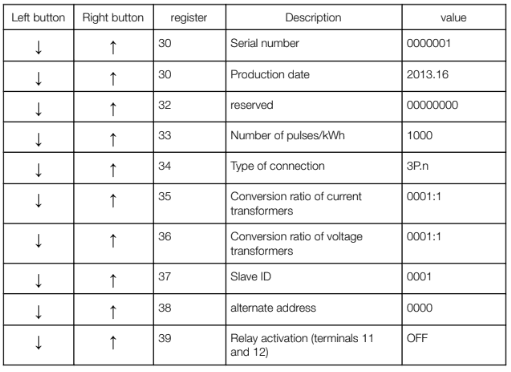
Setting the Inverter ID and communication parameters :
Inverter Parameters :
| Parameter | Values (Default) |
| Modbus Mode | RTU RS485 |
| Modbus slave address | From 1 to 247 (1) |
| Baud rate | 4800, 9600, 19200 (9600) |
| parity | None, odd, even (none) |
ℹ️ For the configuration of ePowerControl, please check the ePowerControl user
manual page 40.
Modbus TCP :
– Ethernet connection :

– Modbus TCP setting :
To connect a web browser to the product, Open the web browser of your smart device and enter the IP address 169.254.12.3 in the address bar.
The login page of the user interface opens.
Go to Device parameters and set the IP address in the External communication section.

set the Modbus id in the Modbus section ( the default is 3 ).

SUNNY TRIPOWER CORE1 (STP 50-40) inverters

Overview
The Sunny Tripower Core2 is a transformerless photovoltaic inverter which converts the direct current of the photovoltaic generator into grid-compliant three-phase current and feeds this into the public power grid.
Installation steps
- Ethernet | Modbus TCP

To connect a web browser to the product, Open the web browser of your smart device and enter the IP address 169.254.12.3 in the address bar.
The login page of the user interface opens.

SUNNY Solid Q50/60 inverters

Overview
The Sunny Tripower is a transformerless photovoltaic inverter with 6 MPP trackers which converts the direct current of the photovoltaic generator into grid-compliant three-phase current and feeds this into the public power grid.
The communication protocol embedded is Modbus RTU using half duplex 2 wires connection.
Installation steps
- RS485 | Modbus RTU
– Communication wiring
– Modbus setting
Communication wiring :
SMA RS485 pinout :

Pin mapping to Elum Controller
❖ Remove the terminal block connector from the Elum serial port and connect the wires as
shown in the following table:
| Inverter Terminal Block | Elum Explorer Serial Port Terminal Block |
| Pin | Pin |
| A | 3 – Data + |
| B | 4 – Data – |
| GND | 5 – GND |
Connect multiple devices in a single Daisy Chain:
When connecting multiple equipment, the following procedure should be followed, as per the
diagram (figure 2):
1. Connect the RS485 differential positive and negative signal of the explorer to pin A and B of
the first inverter.
2. Connect pins A and B of the first inverter in the daisy chain, to pins A and B of the following
inverter.
3. Repeat step 2 for all equipment on the same daisy chain.
4. Terminate the daisy chain on both ends using 120 ohms termination resistors.

Overview
The Sunny Tripower is a transformerless photovoltaic inverter with 6 MPP trackers which converts the direct current of the photovoltaic generator into grid-compliant three-phase current and feeds this into the public power grid.
The communication protocol embedded is Modbus RTU using half duplex 2 wires connection.
Installation steps
- RS485 | Modbus RTU
– Communication wiring
– Modbus setting
Communication wiring :
SMA RS485 pinout :

Pin mapping to Elum Controller
❖ Remove the terminal block connector from the Elum serial port and connect the wires as
shown in the following table:
| Inverter Terminal Block | Elum Explorer Serial Port Terminal Block |
| Pin | Pin |
| A | 3 – Data + |
| B | 4 – Data – |
| GND | 5 – GND |
Connect multiple devices in a single Daisy Chain:
When connecting multiple equipment, the following procedure should be followed, as per the diagram (figure 2):
- Connect the RS485 differential positive and negative signal of the explorer to pin A and B of the first inverter.
- Connect pins A and B of the first inverter in the daisy chain, to pins A and B of the following inverter.
- Repeat step 2 for all equipment on the same daisy chain.
- Terminate the daisy chain on both ends using 120 ohms termination resistors.
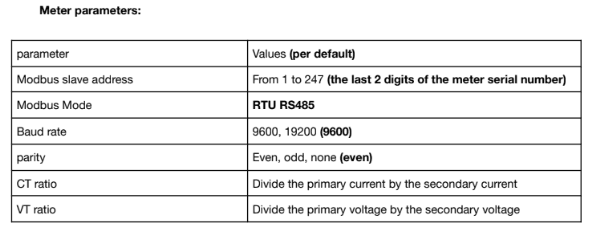
Setting the Inverter ID and communication parameters :
Inverter Parameters :
| Parameter | Values (Default) |
| Modbus Mode | RTU RS485 |
| Modbus slave address | From 1 to 247 (1) |
| Baud rate | 4800, 9600, 19200 (9600) |
| parity | None, odd, even (none) |
ℹ️ For the configuration of ePowerControl, please check the ePowerControl user
manual page 40.
Modbus TCP :
– Ethernet connection :

– Modbus TCP setting :
To connect a web browser to the product, Open the web browser of your smart device and enter the IP address 169.254.12.3 in the address bar.
The login page of the user interface opens.
Go to Device parameters and set the IP address in the External communication section.

set the Modbus id in the Modbus section ( the default is 3 ).
ℹ️ For the configuration of ePowerControl, please check the ePowerControl user
manual page 40.
Socomec
Socomec Diris B-30 RS
Overview
The DIRIS B is a compact power meter with a modular format. It is designed for measuring, monitoring and reporting electrical energy. Diris B-30 RS communicates with Elum Explorer over Modbus RTU via an RS485 physical interface.
Installation steps
● Accessing the device for configuration
● Wiring to Elum Explorer
Accessing the device for configuration
Configuration can be carried out using the Easy Config configuration software or directly from the remote display.
The Easy Config software is used to configure the DIRIS B directly via RS485 or USB. Easy Config must be installed before using the USB connection. The device should be connected to the computer as shown in the following figure:

The Easy Config is configuration software used to set product parameters. To connect the device to Easy Config, click Get from Device then Refresh USB Devices. The device detection will take place automatically.
Parameters are set in successive steps depending on the product:
Network —> Loads —> Measurement method —> Values to be stored —> Alarms —> End configuration
The RS484 Should be set as follows:
– Baud Rate: 9600 baud
– Modbus Slave address: according to Elum specifications
Wiring to Elum Explorer
The RS485 interface location and specifications are shown in the following figure:

Wiring to Elum explorer should be done as follows:
| Elum Explorer Serial Port Terminal Block | Diris B30 RS Terminal block |
| Pin | Pin |
| 3 | + |
| 4 | – |
| 5 | NC |
ℹ️ Make sure that all RS485 specifications and limitations are followed while wiring
your RS485 serial network to avoid signal errors or damage to the equipment.
COUNTIS E43
Overview
The Countis E43 is a totalizing meter calculating active and reactive electrical energy. The E43 communicates with Elum Explorer over Modbus RTU using an optional RS485 interface.
● The ECC500 collector is a cross-platform monitoring product, in which the main
control
● module works with several expansion cards to receive, collect, process, and
report signals.
● Figure 1-1 shows an ECC500.
Wiring to Elum Explorer
The RS485 pin description is shown in the following table:
| PIN | Pin Signal |
| 1 | NC |
| 2 | – |
| 3 | + |
Connect the meter to Elum Explorer as shown in the following table:
| Elum Explorer Serial Port Terminal Block | E4x RS485 Terminal block |
| Pin | Pin |
| 3 | 3 |
| 4 | 2 |
| 5 | 1 |
⚠️ Important
It is essential to connect a resistance of 120 Ohms to the 2 ends of your RS485 network; this can be found in the product packaging.

ℹ️For the RS485 lines, It is suggested to use a shielded wire
Setting Modbus parameters
Modbus parameters of the E43 meter should be set as follows:
● Address: Unique in the RS485 serial network (Range: 1 to 247)
● BaudRate: 9600 baud
● Parity: None
● STOP bit: 1
The procedure to access the parameters is the following:
- Use a screwdriver or any suitable object to press the PROG key for 5 seconds
The following screen should appear:

- Press the PROG key 3 times to reach the first Modbus parameter which indicates the Modbus mode (Manual/Auto)

Use the prog key to navigate the parameters and the key above to change them.

ℹ️ In order to be able to set Modbus parameters, the Modbus mode should be Manual.
The Modbus Parameters are structured as shown:

SolarEdge
SolarEdge inverters
Overview
SolarEdge inverters can be directly monitored and controlled by RS485 | Modbus RTU. The Solar Edge Commercial Gateway should not be connected between Elum Explorer and SolarEdge inverters Installation steps.
Installation steps
● Switch off the inverters and connect inverters to Elum Explorer
● Address inverter and set protocol
● Connect the inverters to each other
Connect inverters to Elum Explorer
ℹ️ Where to connect: Terminal strip inside the inverter
- Open the inverter as shown in the inverter’s instructions.
- Pull the free wires through the wire opening in the inverter.
- Remove the terminal block connector from the Elum serial port and connect the wires as
shown in the following diagram:Elum Explorer Serial Port Terminal Block X4 socket RS485-1 inverter Pin Pin 3 A – Data+ 5 G – GND 4 B – Data- - If no further inverter is connected, terminate the inverter with DIP switch SW7 according to the manufacturer’s instructions.
- Screw the inverter cover on again.
- Insert back the terminal block connector into the Elum Explorer Serial port
Configuration
1. Allocate communication address using the inverter operating display
2. Set communication parameters
Different parameters need to be checked on the inverter’s control panel and changed if
needed before performing the inverter detection:
– Non-SE Logger has to be set in the Communication // RS485-1 Conf // Device Type menu
– SunSpec has to be activated in the Communication // RS485-1 Conf // Protocol menu.
– Slave ID [a unique value 1…247] has to be set according to your Communication Architecture Plan in the Communication // RS485-1 Conf // Device ID menu
– If needed, set the baud rate to a preferred value in the Communication // RS485-1 Conf // Baud rate menu
3. Activate Dynamic Power Control
Connect the inverters to each other
ℹ️ Where to connect: Terminal strip inside the inverter
- Open the inverter as shown in the inverter’s instructions.
- Pull the free wires through the wire opening in the inverter.
- Connect the wires as shown in the following diagram:
X4 socket RS485-1 inverter n X4 socket RS485-1 inverter n+1 Pin Pin A – Data+ A – Data+ G – GND G – GND B – Data- B – Data-
Studer
Xcom 485i
Overview
The Xcom-485i module offers the possibility for Elum Explorer to interact with a Studer Xtender/Vario system using Modbus RTU on RS-485.
Before installing the module, the configuration of the function and the selection of pin out connection must be achieved.
Note
ℹ️ This device was designed for indoor use only and must under no circumstances be
exposed to rain, snow or any other humid or dusty environment. As far as possible,
reduce exposure to sudden temperature variation: important heat variation may
create undesired and harmful condensation inside the equipment.
Installation steps
- Disconnect Studer equipment
- Open the Xcom 485i
- Selection of the PIN assignment of the RS-485 bus connection
- DIP switch setup (optional)
- Close the Xcom 485i
- Connect the Xcom485i to Studer equipment
- Connect the Xcom 485i to Elum Explorer
Disconnect Studer equipment
Disconnect your Xcom-485i module from all devices (installation, battery, etc.).
Open the Xcom 485i
1. Open the Xcom-485i with a screwdriver (2 screws).
2. On the electronic board inside the device there are two elements to select the chosen
configuration:
– Jumper array for RJ-45 (third party side) pinout arrangement.
– DIP switches to select a protocol-related configuration (see Modbus RTU Studer
protocol).

Selection of the PIN assignment of the RS-485 bus connection
To enable proper communication with Elum Explorer, the pin assignment of the Xcom485i must be done according to 2W Modbus described below:

DIP switch setup (optional)
The RS-485 baud rate can be selected using the dip switches 7 and 8 of the Xcom-485i. The
following tables show how to select it. If needed configure dip switches 7 and 8 according to your Communication Architecture Plan. The dip switches 1 to 6 should remain positioned on OFF.

Close the Xcom 485i with a screwdriver (2 screws).
Connect Xcom485i to Studer equipment
The Studer bus is daisy chained to the other XT/VT/VS Studer components and is powered by the communication plug as soon as the upfront device is powered. The Xcom-485i module should not be installed between 2 devices powered by the battery. Connect the Xcom-485i module with the supplied cable (2m). This cable should not be extended.
⚠️ Do not connect the Xcom-485i between devices connected to the battery. Do not
connect the module to a device not connected to the battery (RCC or other Xcom).
⚠️ The termination switch of the communication bus “Com. Bus” remains in position T
(terminated) except when both connectors are used. In this case and only in this case, the switch must be placed in the O (open) position. If one of the two connectors is not used, the termination switch will be in position T. An incorrect setting of the link ends can lead to an erratic running of the system or
impede its updating process.
ℹ️ By default, the termination is set to terminated (position T) on each Studer product.

Connect the Xcom 485i to Elum Explorer
Most communication devices provide a specific connector and pin assignment. A specific cable has an RJ-45 connector on one side and on the other side, the third-party devices to a connector are required. This cable is either supplied by the manufacturer or must be crafted by the installer. The Xcom-485i package provides 2 cables with RJ-45 connectors on both ends. One of the two can be used to craft the proper cable.

| Wire Color | Blue | Orange | Black | Red | Green | Yellow | Brown | White |
| Position Number | 1 | 2 | 3 | 4 | 5 | 6 | 7 | 8 |
| Modbus mapping | D-/B | D+/A | GND |
Connect the Xcom 485i to the Elum Explorer according to the described below wires Modbus
mapping and the Elum Explorer pin mapping described in the Elum User Manual.
Sungrow
Sungrow SG110CX
Overview
Sungrow SG110CX is a transformerless three-phase PV grid-connected inverter. The SG110CX inverter could communicate with Elum Explorer over Modbus RTU communication protocol via two groups of RS485 physical interfaces. The following figure shows the position and the terminals of the inverter’s communication board.

When multiple inverters are connected in the RS485 daisy chain, a 120-ohms terminating resistor can be connected through the RS485 dip switch, to ensure communication quality.
ℹ️ The RS485- terminal block and the RS485-RJ45 interfaces have the same function,
they only differ in terms of wiring. They can either be used to connect inverters to
each other, however, a terminal block connection is mandatory to connect the last
(or a single) inverter to Elum Explorer.
Wiring to Elum Explorer
- Open the inverter according to the inverter‘s instructions.
- Pull the free wires through the wire opening in the inverter.
- Connect the wires as shown in the table and diagrams:

ℹ️ It is recommended to use a shielded twisted-pair cable with solid conductors
4. If no further inverter is connected, terminate the inverter
5. Close the inverter if no other inverters are to be connected.
6. Insert the terminal block connector into serial port 1 of Elum Explorer.
The RS485 connections on the terminal strip are each double connections so that the wiring can be continued to the next inverter.
When connecting multiple inverters, the connection should be performed as shown in the following diagram:

Victron
Victron Color Control
Overview
Colour Control is the communications center for Victron inverters in every type of application. Elum Explorer communicates with Victron inverters through the Colour Control over Ethernet | Modbus TCP or MQTT.
Installation steps
- Configuration
- Wiring to Elum Explorer
- Setup on Elum Configuration
Configuration
- Navigate to the settings/ethernet menu
- Set the IP configuration to Manual, and note all the network configuration parameters (IP address, Netmask, Gateway, DNS) on the deployment form.
- Navigate to Settings/Services
- Activate the Modbus/TCP functionality
- Activate the VRM Two-Way

Connection to Elum Explorer

Connect the LAN1 port of the Elum Explorer to the Ethernet port of the Victron Color Control.
Setup on Elum Configuration
When adding the Color Control on Elum Configuration, you must indicate slave_id: 100

Victron Venus GX
Overview
The Venus GX (VGX) and the Color Control GX (CCGX) have the functionality and run on the same software, the “Venus OS”. The Venus GX is more cost-effective and offers more analog and digital inputs and outputs. However, the latter is not equipped with a local monitoring and configuration interface, therefore a smartphone, tablet, or laptop is required to access the device’s Remote Console.
Installation steps
- Access to remote console
- Configuration
- Wiring to Elum Explorer
- Setup on Elum Configuration
Access to remote console
The easiest way to access the Venus GX Remote Console is by using the built-in WiFi Access Point. The steps are as follows:
- Make sure you are no further than a few meters away from the Venus GX
- Go to the WiFi settings on your phone/tablet/laptop.
- After searching, the Venus GX will show up in the list, as Venus- the serial number as printed on the box-.
- Connect to WiFi using the ‘WiFi key’ which you will find printed on the side of the box and also on a card in the plastic bag.
- Once connected, the Remote Console can be accessed by inserting the IP address 172.24.24.1 in a web browser.
- Use the hotkeys to navigate the console

ℹ️ The remote console is also accessible via the online VRM Portal, which requires
internet or via the local LAN network, for further information about these access
methods, please refer to the Venus GX manual.
- Configuration Navigate to the settings/ethernet menu
- Set the IP configuration to Manual, and note all the network configuration
parameters (IP address, Netmask,Gateway, DNS) on the deployment form. - Navigate to Settings/Services
- Activate the Modbus/TCP functionality
- Activate the VRM Two-Way Communication
- Activate the MQTT functionality

Wiring to Elum Explorer
Connect the LAN1 port of the Elum Explorer to the Ethernet port at the bottom of the Victron
Venus GX.

Setup on Elum Configuration
When adding the Color Control on Elum Configuration, you must indicate slave_id: 100

Wes Module
Module I/O
Overview
The Wes module allows the collection of data and pilot several devices (power meters, temperature sensors …) through Modbus TCP protocol using RJ 45 wires.

Installation steps
- Wiring to Elum Explorer
- Setting a static IP address
- Set the I/O parameters
Wiring to Elum Explorer
Connect the RJ45 port located near the power supply LED with a LAN wire, to the LAN port 1 on
the Elum Explorer
Modbus TCP Configuration
To allow communication with the device, you must configure on the Elum configuration interface the LAN 1 port as follows:
– Static Ip: 192.168.1.1
– Subnet Mask: 255.255.255.0
– Host: 192.168.1.100
– port: 80
– Gateway & DNS: leave it blank
Set the I/O parameters
– WES, Temperature: ID

Each sensor has a unique ID that is noted on the bar code tag on the wire close to the RJ11 connector, as shown in the picture below.

For example, this temperature sensor has an ID: 28AAF0B74F1401, note that spaces and capital letters are not important.
Device Connection & Configuration Specific Instructions
– WES, Wattmeter and TIC Wattmeter: Convention

The “Active” Convention must be applied on the meters that are measuring production. The
“Passive” convention must be set for meters measuring consumption.
– WES, Wattmeter: Pulse

Define the right meter ratio, Wh/Impulsion.
– WES, Irradiance: Scale

The scale factor to be applied is expressed in W/m²/V. Further information on this part can be found in the manufacturer’s documentation of the irradiance sensor.
Woodward
easYgen-3000 genset controller
Overview
easYgen-3000 Controls are the generator set digital paralleling controls responsible for synchronizing, load sharing, protection, metering and monitoring suitable for any power system application needs.
The communication protocol embedded is Modbus RTU using half duplex 2 wires connection.
Installation steps
● Communication wiring
● Modbus setting
Communication wiring :
easYgen-3000 RS485 pinout :

Pin mapping to Elum Controller
❖ Remove the terminal block connector from the Elum serial port and connect the wires as
shown in the following table:
| easYgen-3000 Terminal Block | Elum Explorer Serial Port Terminal Block |
| Pin | Pin |
| 5 | 3 – Data + |
| 6 | 4 – Data – |
Connect multiple genset controllers in the Daisy Chain:
When connecting multiple genset controllers, the following procedure should be followed:
- Connect the RS485 differential positive and negative signal of the explorer to terminal 5
and 6 of the first equipment. - Connect terminal 5 and 6 of the first inverter in the daisy chain, to terminal 5 and 6 of other equipment.
- Repeat step 2 for all equipment on the same daisy chain.
- Terminate the daisy chain on both ends using 120 ohms termination resistors.

Genset controller parameters:
| parameter | Values (default) |
| Modbus slave address | From 1 to 255 (1) |
| Modbus Mode | RTU RS485 |
| Baud rate | 9600 / 19200 / 38400 / 57600 / 115200 (19200) |
| parity | Even, odd none (none) |
SofarSolar
Sofar 80-136 KTL inverters
Overview
SOFAR 80~136KTL is a transformerless on grid PV inverter, that converts the direct current of the PV array to the grid-compliant, three-phase current and feeds into the utility grid. The communication protocol embedded is Modbus RTU using half duplex 2 wires connection.
Installation steps
- Communication wiring
- Modbus setting
Communication wiring :

Pin mapping to Elum Controller
❖ Remove the terminal block connector from the Elum serial port and connect the wires as
shown in the following table:
| Inverter Terminal Block | Elum Explorer Serial Port Terminal Block |
| Pin | Pin |
| 1 – RS485A | 3 – Data + |
| 3 – RS485B | 4 – Data – |
Connect multiple devices in a single Daisy Chain:
When connecting multiple equipment, the following procedure should be followed, as per the
diagram (figure 2):
- Connect the RS485 cable from the Elum unit terminal to the serial port of the first inverter.
- Connect the RS485 cable from the first inverter serial port to the second inverter serial port.
- Repeat step 2 for all equipment on the same daisy chain.
- Terminate the daisy chain on both ends using 120 ohms termination resistors.

Setting the Inverter ID and communication parameters :
Inverter Parameters :
| parameter | Values (Default) |
| Modbus Mode | RTU RS485 |
| Modbus slave address | 1~247 (1) |
| Baud rate | 4800, 9600, 19200, 38400, 57600, 115200, 1200, 2400 (9600) |
| parity | None, even, odd (none) |
Modify the inverter address :
- Long press the down button under the standard interface to enter into the main interface.
- Enter setting Interface by long pressing the do down button.
- Scroll to the option 7 and long press the Down button, then set the new id.